1. Purpose of this Guide
This screenshot demonstrates that your organisation enables and retains logging of system activities on cloud platforms.
2. What You Will Submit
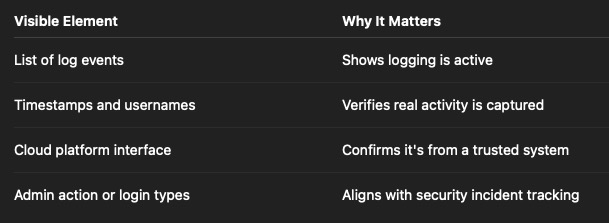
A screenshot of a cloud logging dashboard that shows:
-
The cloud system (e.g. Microsoft Entra ID, Google Admin, AWS, GitHub)
-
Actual log entries with timestamps and event types
-
(Optional) Filters applied, such as "Security Events", "Admin Actions", "Sign-ins"
3. How to Obtain This Screenshot
A. Microsoft 365 (Entra ID / Defender)
-
Navigate to Monitoring > Sign-in Logs or Audit Logs
-
Ensure the view shows:
-
Timestamps
-
Username or Object (blur if needed)
-
Action performed (e.g. sign-in, password change)
-
-
Take a screenshot showing at least 5 log entries
Bonus: Filter for a time range (e.g. "Last 7 days") or event types ("Admin", "Conditional Access")
B. Google Workspace (Admin Console)
-
Go to https://admin.google.com
-
Navigate to Reporting > Audit log > Admin / Drive / Login
-
Filter by event type or username
-
Screenshot should show:
-
List of recent logged actions
-
Timestamp
-
Event type
-
Targeted user or object
-
Best: Use the "Audit log – Admin" or “Login log” view
C. AWS CloudTrail
-
Go to CloudTrail > Event history
-
Filter for "ReadOnly: false" or specific service (e.g. IAM)
-
Screenshot should show:
-
Event time
-
Event name (e.g. CreateUser, ConsoleLogin)
-
Username or ARN
-
Source IP
-
4. Accepted File Format
-
✅ PNG, JPG, or PDF
-
✅ Suggested filename:
YourCompany_CloudLoggingScreenshot_20250701.png
5. What Good Evidence Looks Like