Overview
The StrongKeep Password Manager works smoothly on both iOS and Android devices. Using the mobile app helps you access your organisation’s passwords anytime, auto-fill logins on mobile browsers, and stay protected even when you’re on the go.
This guide will show you how to install the mobile app, sign in securely, and turn on autofill.
Good to know: StrongKeep uses a secure Vaultwarden backend. Everything stays encrypted with your master password, which only you know.
1. Install the Bitwarden App (iOS or Android)
StrongKeep’s password manager works with the official Bitwarden mobile app.
-
Open the App Store (iOS) or Google Play Store (Android).
-
Search for “Bitwarden Password Manager.”
-
Install the app.
Tip: The app is free and works seamlessly with your StrongKeep organisation.
2. Sign In to Your StrongKeep Vault
-
Open the Bitwarden app and tag Log in.
-
Set "loggin in on" as "Self-hosted"
-
Under Server URL, enter "https://vaultwarden.strongkeep.com"
-
Enter your email address and master password and tap Log In to access your vault.
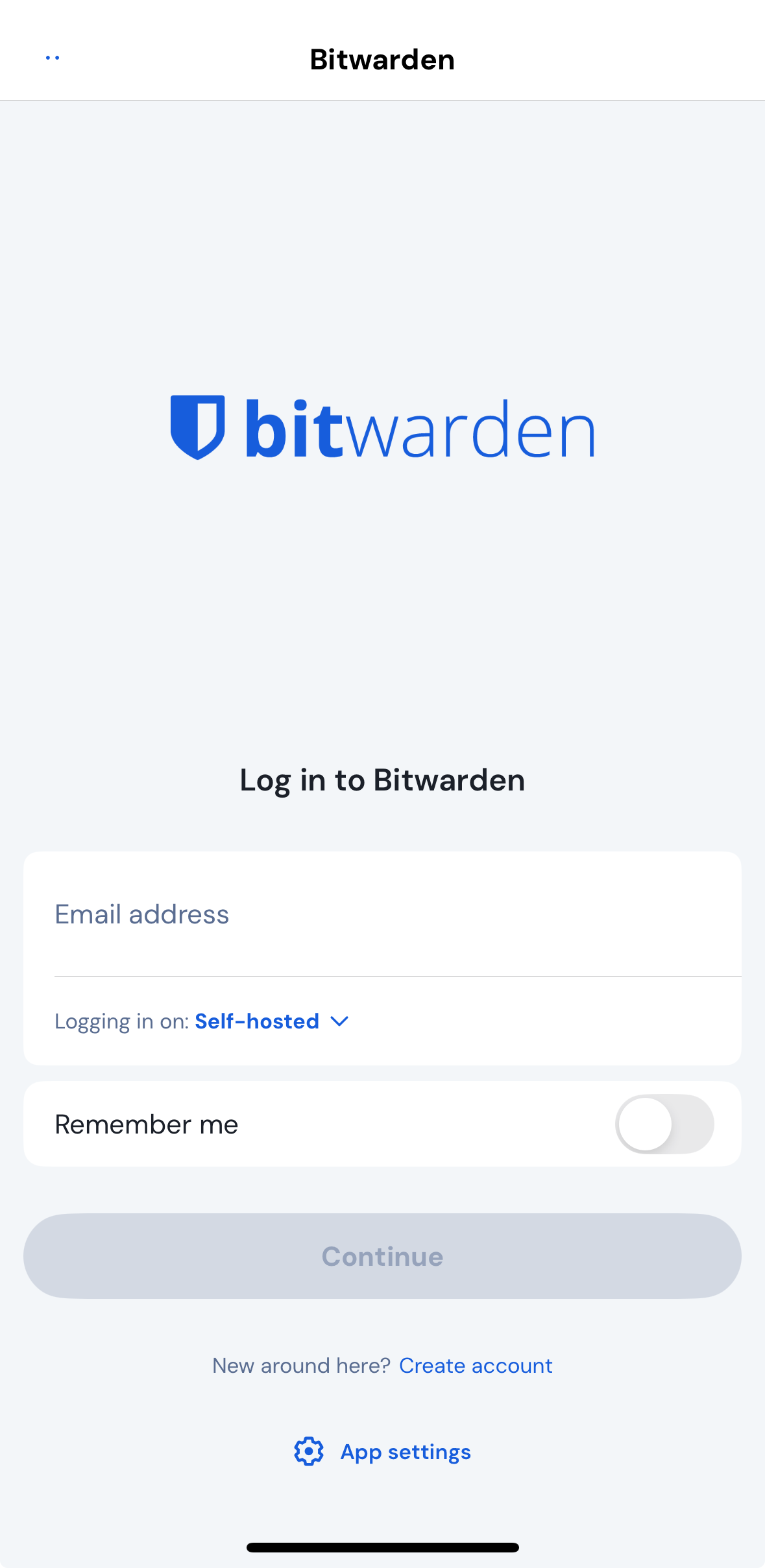
3. Enable Autofill on Mobile
Autofill lets your phone automatically fill usernames and passwords for apps and websites.
For iOS
-
Go to Settings → Passwords → Password Options.
-
Turn on AutoFill Passwords.
-
Select Bitwarden as your autofill provider.
For Android
-
Open Settings.
-
Search for Autofill service or Passwords & Autofill (wording varies by device).
-
Choose Bitwarden as your autofill service.
-
Grant permission when prompted.
Why this matters: Autofill prevents typing mistakes and reduces the risk of entering passwords into fake or malicious websites.
4. Access Your Organisation’s Collections
Once signed in:
-
You’ll see the collections assigned to you.
-
Tap any item to view or copy the password.
-
Tap the share or copy icons to use the password quickly.
Collections help your team share sensitive logins safely — without sending passwords over chat or email.
5. Add, Edit, or Create Passwords
You can manage passwords directly from your mobile device:
-
Tap + to create a new login.
-
Update entries if your password changes.
-
Attach notes or 2FA recovery codes if your admin allows it.
All changes sync instantly to your organisation.
6. Use the Built-In Password Generator
To create strong, unique passwords:
-
Tap Generator in the Bitwarden app.
-
Choose Password or Passphrase.
-
Copy and use it whenever you create accounts.
Passphrases are easier to remember and still very strong — perfect for personal accounts or mobile logins.
Troubleshooting
-
Can’t log in?
Double-check the Server URL. It must match your StrongKeep Password Manager domain. -
Autofill not appearing?
Restart your phone after enabling the Bitwarden autofill service. -
New collection not showing up?
Pull down to refresh your vault.