1. Purpose of This Guide
Your staff list is the cornerstone of your cybersecurity responsibilities. It shows who in your organisation has IT access, which in turn tells auditors:
-
Whose devices must be protected
-
Who needs cybersecurity training
-
Who must follow company policies
-
Who might hold sensitive accounts (admin, finance, HR, etc.)
In short: if cybersecurity is a team sport, this list shows who’s actually on the team.
2. What You Will Submit
You may submit one of the following:
-
A staff list generated directly from the StrongKeep platform
(Recommended — it’s clean, complete, and mapped to your devices/training automatically.) -
A screenshot or export from your HR system, such as:
-
Microsoft 365 / Entra ID
-
Google Workspace Admin
-
HRMS (Talenox, JustLogin, BambooHR, etc.)
-
Payroll or workforce management systems
-
-
A simple spreadsheet
If your HR system is basic, a CSV or Excel showing staff details is also acceptable.
Your evidence must list all staff with IT access, including active full-timers, part-timers, contractors, interns, and anyone with a company email or access to company systems.
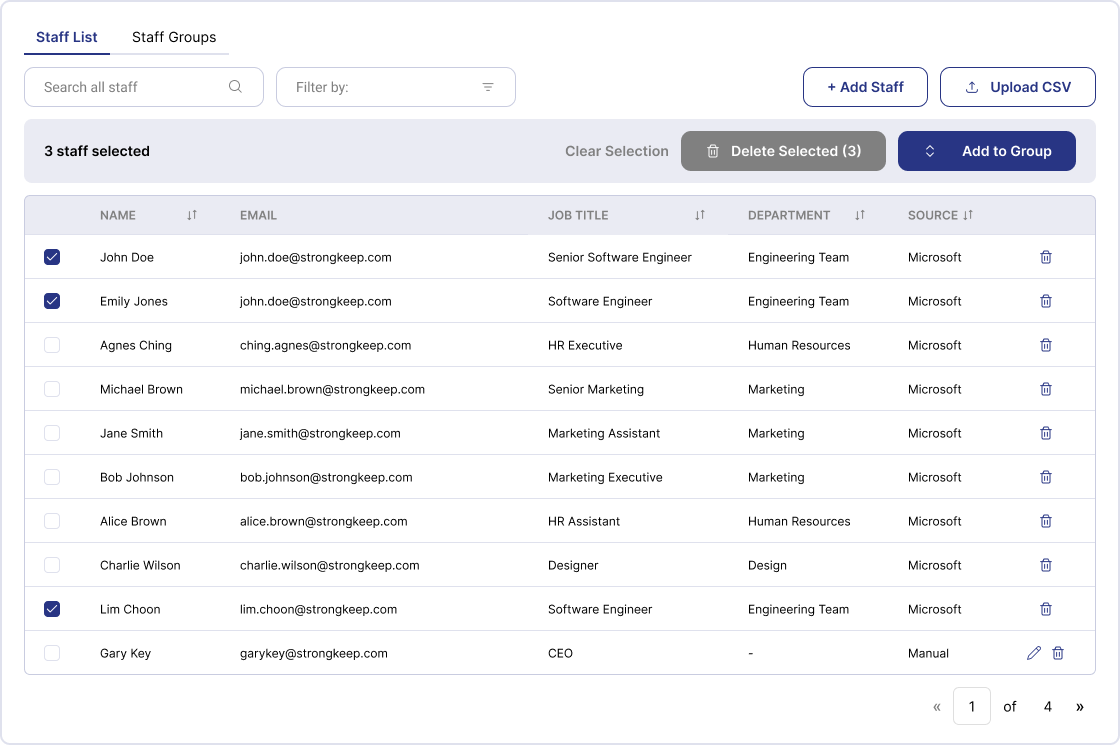
A sample layout is shown in the screenshot provided.
3. How to Collect / Obtain / Generate This Evidence
Below are the most common methods:
Option A — Generate Staff List from StrongKeep (Recommended)
StrongKeep automatically builds your staff list when you integrate:
-
Microsoft 365
-
Google Workspace
-
CSV import
To obtain your evidence:
-
Log in to StrongKeep as an IT Manager.
-
Go to Staff → Staff List.
-
Review that the list is accurate and up to date.
-
Use the Export / Download option (if enabled), or take a screenshot showing:
-
Staff names
-
Emails
-
Job titles
-
Departments
-
Source (Microsoft, Google, Manual)
-
-
Save the screenshot for upload.
This produces a clean, auditor-friendly record straight from the platform — the easiest route to victory.
Option B — Export From Microsoft 365 (Entra ID / Azure AD)
-
Go to Microsoft 365 Admin Center
-
Open Users → Active Users
-
Filter out service accounts if needed
-
Click Export Users
-
Save the CSV or take a screenshot of the full list
Ensure the export includes:
-
Name
-
Email
-
Job title
-
Department
Option C — Export From Google Workspace Admin
-
Go to admin.google.com
-
Click Directory → Users
-
Export list via Download users
-
Or screenshot the visible user list
Option D — Export from HR Management Systems
Most HR systems support a staff directory export.
Download in CSV/Excel or screenshot the listing page.
Examples of fields you may include:
-
Name
-
Role / Job title
-
Department
-
Employment type
-
Work email
4. Evidence Format
Accepted File Types:
-
PNG
-
JPG
-
PDF
-
CSV
-
XLSX
Suggested Naming Convention:
YourCompanyName_StaffList_YYYY-MM-DD
Example:
AcmeClinic_StaffList_2025-01-10.xlsx
5. What “Good” Looks Like
A strong Staff List submission includes:
-
All employees with IT access
(don’t forget interns, part-timers, contractors) -
Clear identifying information
-
Name
-
Email address
-
Role / Job title
-
Department
-
-
Active staff only
If someone left the company, remove or clearly mark them. -
Consistent formatting
No duplicates, no blank rows, no mystery entries like “Temp123”. -
Evidence of the source
Screenshots should show that the list was taken from a real system (M365, Google, HRMS, StrongKeep).
Why this matters: auditors need to confirm your organisation knows exactly who needs device protection, security training, and policy enforcement.
6. Tips
-
Review accuracy every quarter
Staff changes = cybersecurity changes.
Keeping the list fresh helps compliance and operations. -
Redact sensitive fields
Phone numbers, NRIC/FIN, or addresses can be hidden — only job-related info is required. -
Use StrongKeep to save time
Our platform ties staff → devices → training → policy acknowledgements automatically, reducing manual evidence work.