1. Purpose of This Guide
This artefact proves that automatic email forwarding to external addresses is disabled at the organisation level.
Why this matters: attackers who compromise an email account often set up silent forwarding rules to siphon emails out without being noticed. Disabling auto-forwarding cuts off that escape route.
Under PDPA Data Protection Essentials Clause 5.1.7, this control is recommended (not mandatory), but providing evidence here strengthens your overall data protection posture and reduces assessor follow-up questions.
2. What You Will Submit
You will upload one screenshot showing that auto-email forwarding to external addresses is disabled.
The screenshot should:
-
Be taken from your email admin console
-
Clearly show the organisation-wide setting
-
Indicate that external auto-forwarding is blocked or disabled
3. How to Collect / Obtain This Evidence
Option A: Microsoft 365 (Exchange Online)
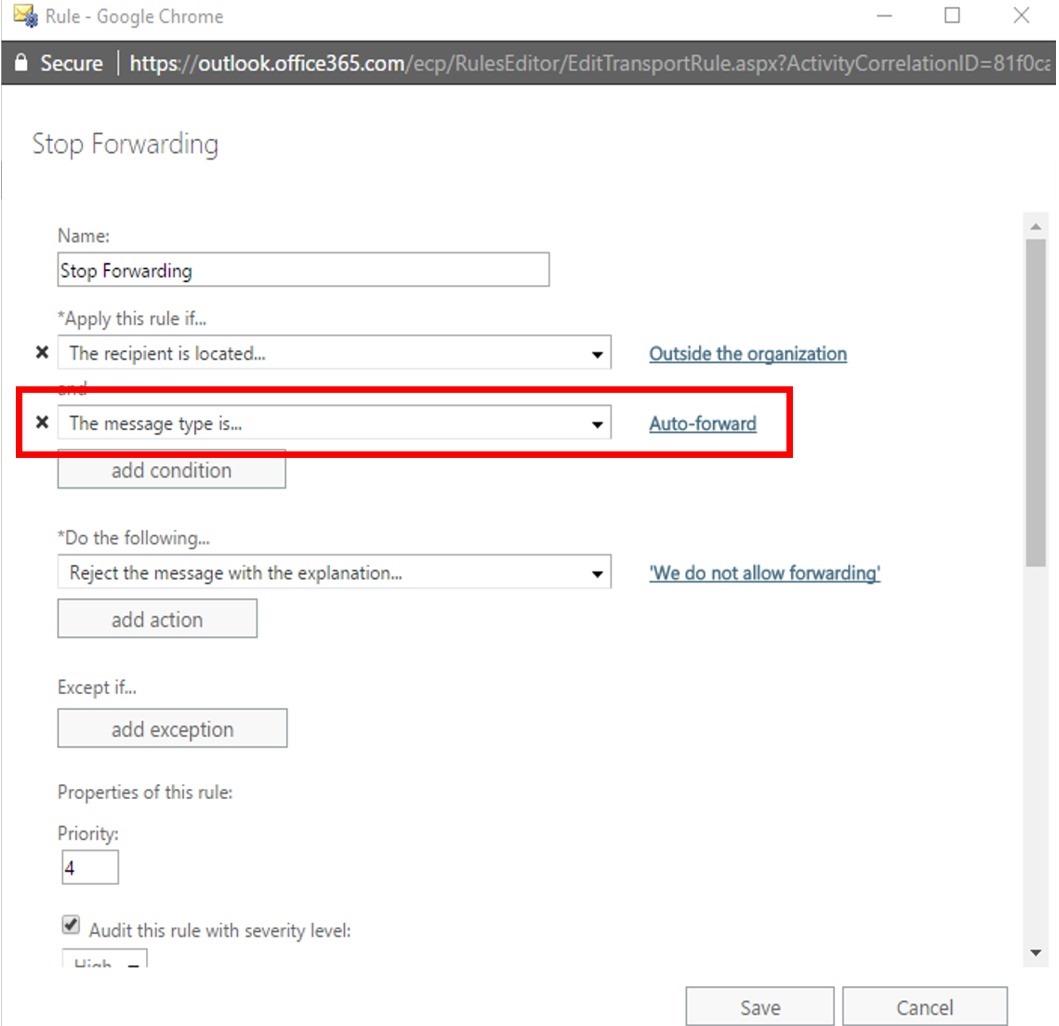
-
Sign in to the Microsoft** 365 Admin Center**
-
Go to Admin centers → Exchange
-
Navigate to Mail flow → Rules
- Apply the rule to messages that are auto-forwarded, and "reject the message" with an explanation.
-
Navigate to Protection → Anti-spam policies and open the Outbound spam policy
- Ensure Automatic forwarding is set to Off (or blocked to external domains)
-
Take a screenshot showing the setting clearly
Option B: Google Workspace (Gmail)
-
Sign in to the Google Workspace Admin Console
-
Go to Apps → Google Workspace → Gmail
-
Open Routing or End user access
-
Confirm that automatic forwarding to external addresses is disabled or restricted
-
Take a screenshot showing the policy status
If you use another email system
Provide a screenshot from the admin console showing:
-
Auto-forwarding rules are disabled, or
-
External forwarding is blocked by policy
4. Evidence Format
-
Accepted file types: PNG, JPG, PDF
-
Recommended naming format:
YourCompanyName_AutoEmailForwardingDisabled_YYYY-MM-DD.pngExample:
AcmeCorp_AutoEmailForwardingDisabled_2025-07-01.png
5. What “Good” Looks Like
A strong screenshot includes:
-
Visible Element: Admin console page (not a user mailbox)
Why it matters: Proves the control is enforced organisation-wide. -
Visible Element: Setting clearly marked as Disabled, Off, or Blocked
Why it matters: Removes ambiguity for the assessor. -
Visible Element: Platform branding or URL bar
Why it matters: Confirms the source of the configuration.
If an assessor can tell, at a glance, that external auto-forwarding is blocked, you’re golden.
6. Tips from Sir Stonk 🗡️
-
If you must allow forwarding for business reasons, document it separately and explain compensating controls (monitoring, alerts, restricted domains).
-
Crop carefully — include the setting name and status, not just a green tick.