Overview
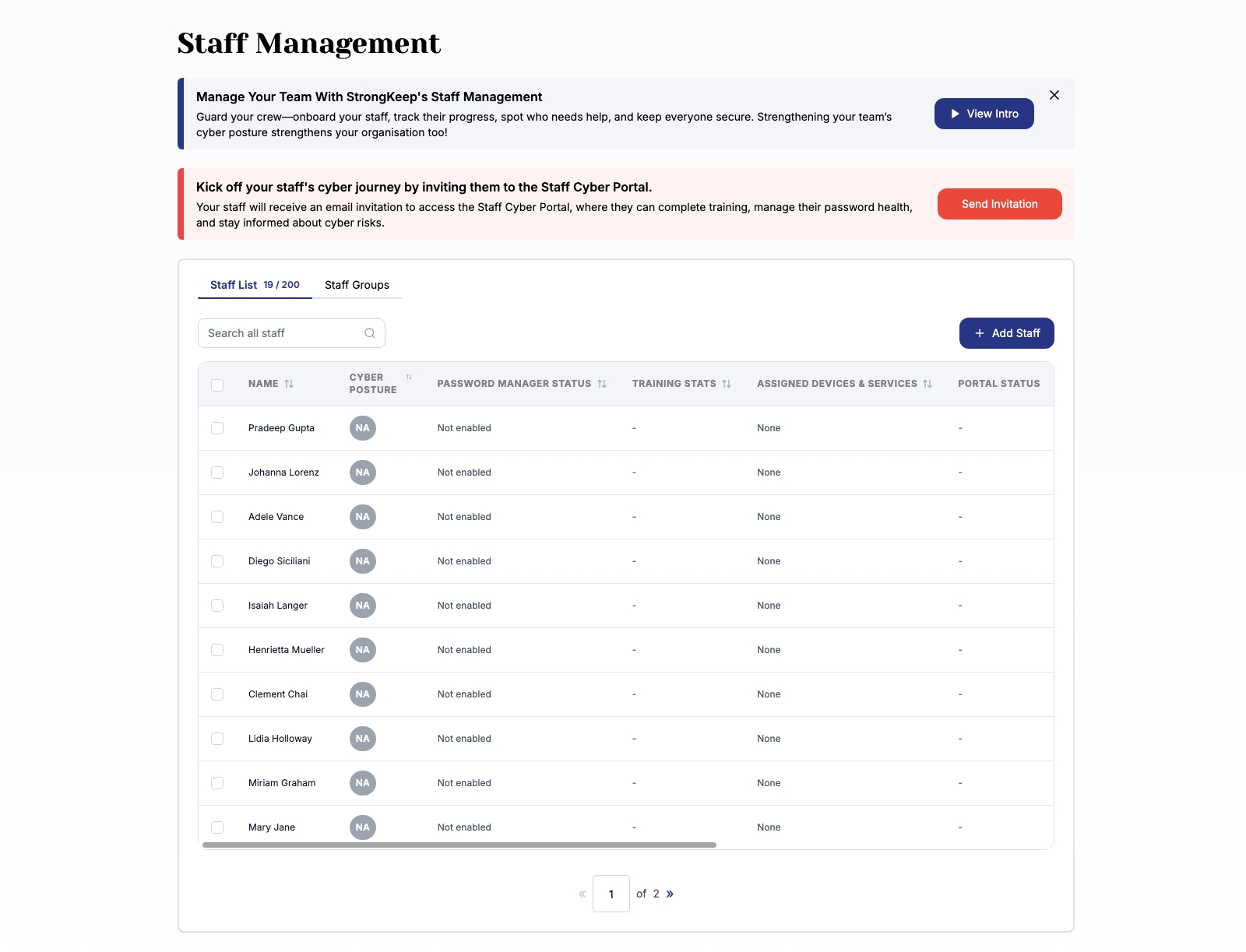
Staff Management helps you keep your whole team protected in one place.
From here, you can:
-
Add and organise your staff
-
Send training to improve cyber awareness
-
Give access to the Staff Portal for installers and tools
-
Track each person’s cyber posture at a glance
It’s your central view of who’s protected, who needs attention, and what to do next.
How to Add Staff (Step-by-Step)
-
Go to Staff Management
-
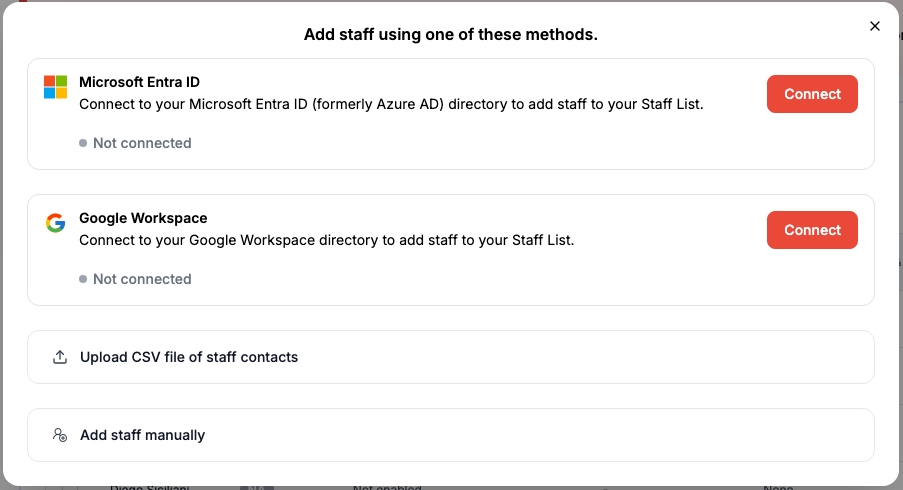
Click Add Staff
-
Choose one of the four methods:
-
Microsoft 365
-
Google Workspace
-
Upload CSV
-
Add manually
-
-
Follow the prompts to complete setup
-
Send invitations to your staff
What You Can Do in Staff Management
1. Add Your Staff
You can add staff in four simple ways depending on what works best for your business:
Option 1: Sync with Microsoft 365
Connect your Microsoft directory to automatically import your team.
Option 2: Sync with Google Workspace
Pull your staff list directly from Google Workspace.
Option 3: Upload a CSV file
Upload a list of staff emails using our template.
Option 4: Add staff manually
Add individual staff one by one.
Once added, you can send them an invitation to join the Staff Portal.
2. Invite Staff to the Portal
When you invite a staff member:
-
They receive an email invitation
-
They can log in to their Staff Portal
-
They can access installers and complete training
This helps your team take action without needing IT support for every step.
3. Track Cyber Posture
Each staff member has a simple status view so you can quickly see:
-
If their device is protected
-
If password security is enabled
-
If training has been completed
This makes it easy to spot gaps and follow up.
4. Assign Devices and Services
You can assign protection tools and services to each staff member.
This ensures:
-
The right people are protected
-
Licenses are used properly
-
Nothing is missed
5. Organise Staff into Groups
Create staff groups to stay organised.
Groups help you:
-
Send training to specific teams
-
Manage departments separately
-
Roll out protection in batches
For example, you can create groups like:
-
Finance
-
Operations
-
New Joiners
Tips & Troubleshooting
-
If a staff member didn’t receive the invite, check their email address and resend it
-
CSV uploads must follow the provided template format, errors will be shown relating to invalid entries before confirming import
-
If directory sync fails, reconnect your Microsoft or Google account, refresh the page
Why This Matters
Your security is only as strong as your people.
Staff Management helps you:
-
Keep everyone accountable
-
Close security gaps early
-
Build good cyber habits across your team