How to Set Up Staff Training Campaigns
Overview
Training your staff is one of the simplest ways to reduce everyday cyber risks. StrongKeep helps you roll this out in minutes — from onboarding new hires to ongoing awareness training.
Pre-requisites
Before you begin, make sure your staff list is already added. Training campaigns are sent directly to your team.
Step 1: Go to Training Campaigns
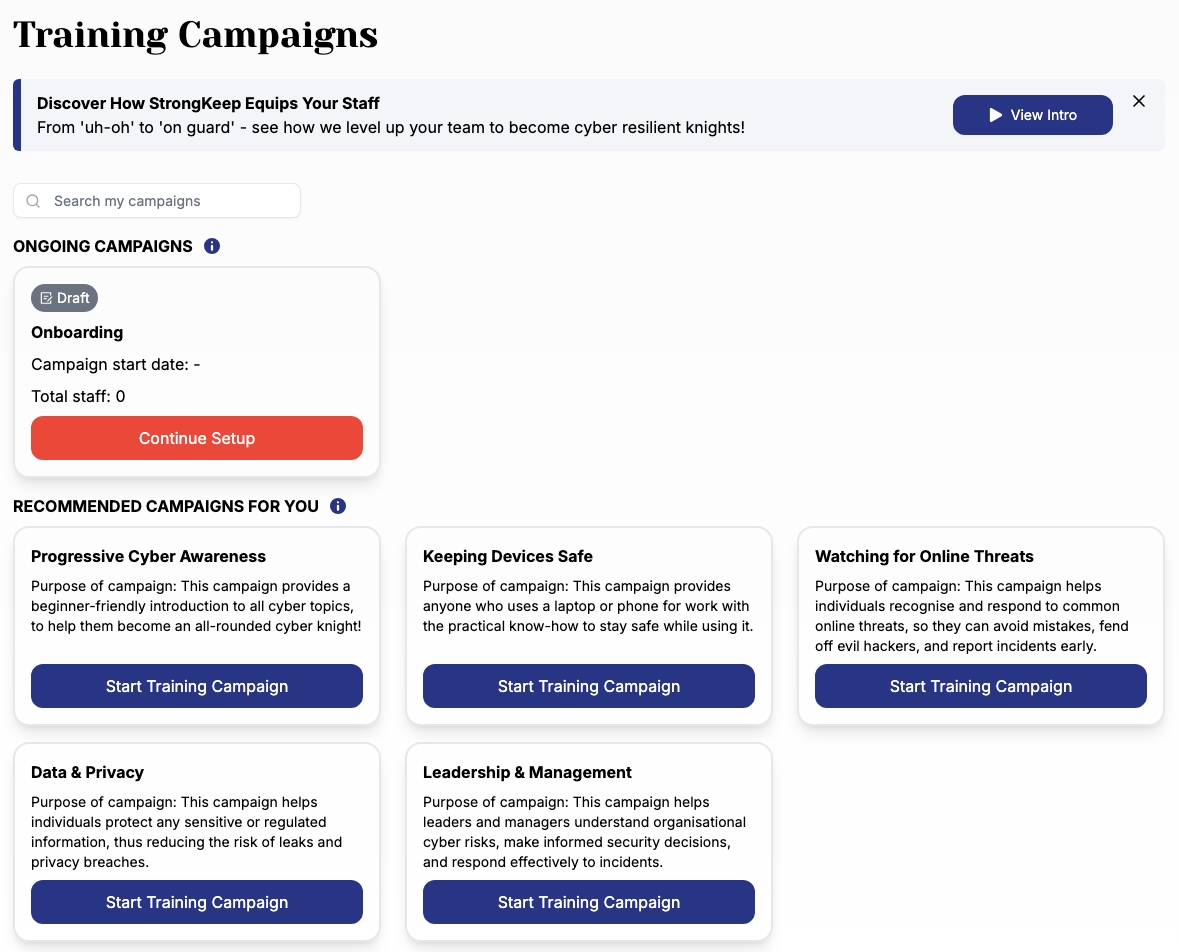
From your dashboard, go to Training → Staff Training.
You’ll see:
-
A default campaign for all staff- Onboarding
-
Recommended templates to get started quickly
Step 2: Choose a Campaign
Option A (Recommended): Use the default Onboarding campaign
This is ready out of the box — no setup needed.
Just click Continue Setup.
Option B: Start a new campaign
Pick from templates like:
-
Progressive Cyber Awareness
-
Keeping Devices Safe
-
Watching for Online Threats
-
Data & Privacy
These help you target specific risks your team faces.
Step 3: Review Campaign Summary
Before launching, you’ll see a summary of the campaign.
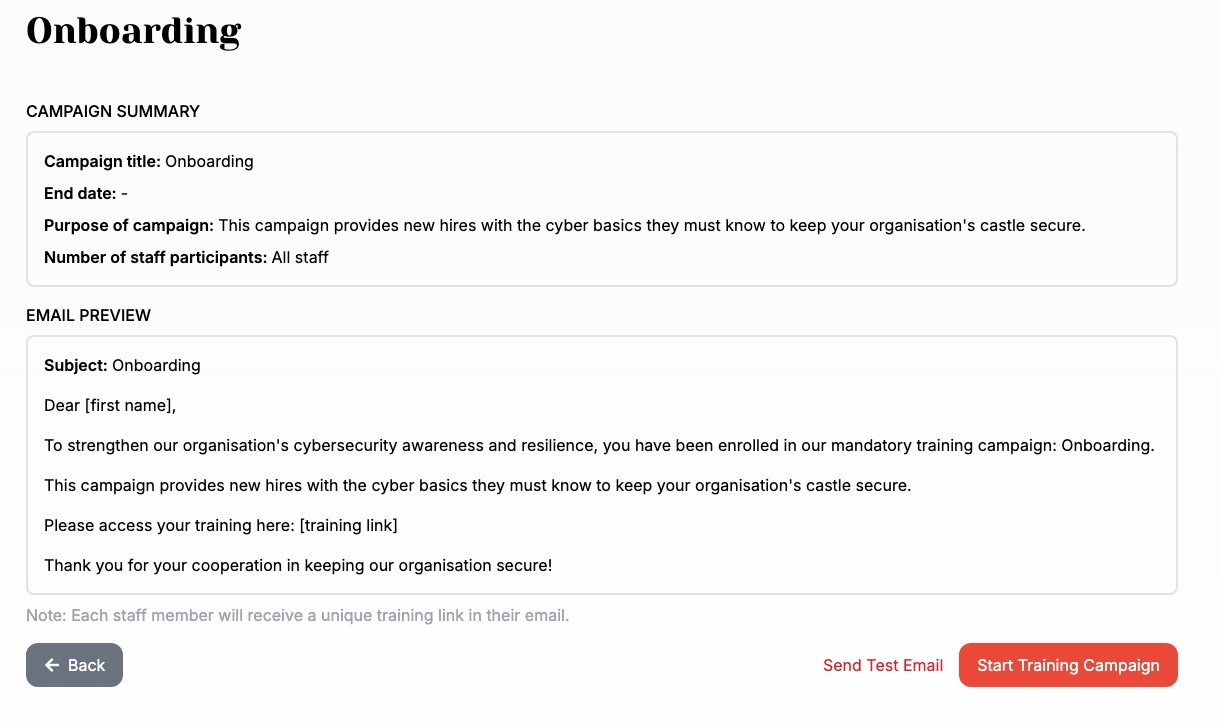
For the Onboarding campaign:
-
Staff participants: Automatically set to All staff
-
End date: No end date (continuous learning for new hires)
-
Purpose: Pre-filled to guide new staff on cyber basics
For other campaigns, you can usually adjust:
-
Staff group or participants
-
Campaign end date
Step 4: Preview the Training Email
StrongKeep sends each staff member a training email with their own unique link.
In this step, you can:
-
Review the email content
-
Click Send Test Email to yourself
-
Open the training link to preview the quiz experience
Each staff member will receive:
-
A personalised training link
-
A randomised set of questions based on the selected topic
This keeps training fair and prevents answer sharing.
Step 5: Launch the Campaign
Once everything looks good:
-
Click Start Training Campaign
-
Emails will be sent to your staff automatically
That’s it — your training is live.
Step 6: Track Progress and Results
After launching, you can monitor how your team is doing in real time.
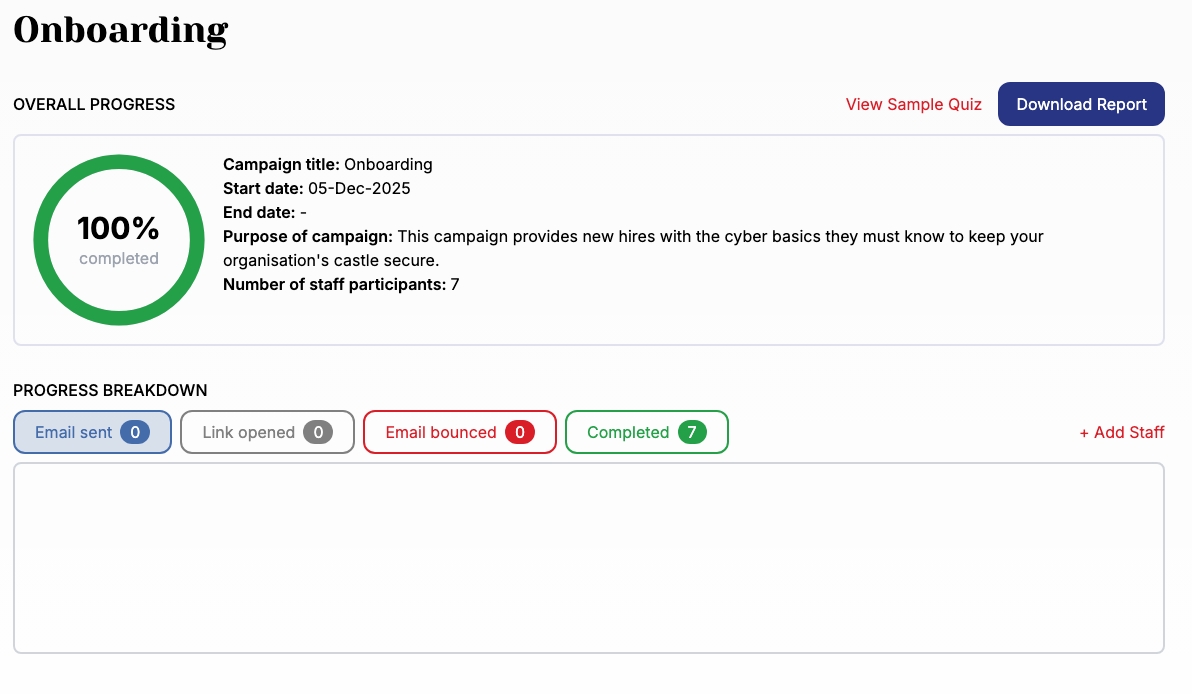
You’ll see:
-
Overall completion rate
-
Number of staff who completed training
-
Email delivery and engagement (sent, opened, bounced)
-
Individual campaign performance
Step 7: Download Reports
You can export results anytime:
-
Campaign Report → For a single campaign
-
Overall Training Report → Across all campaigns
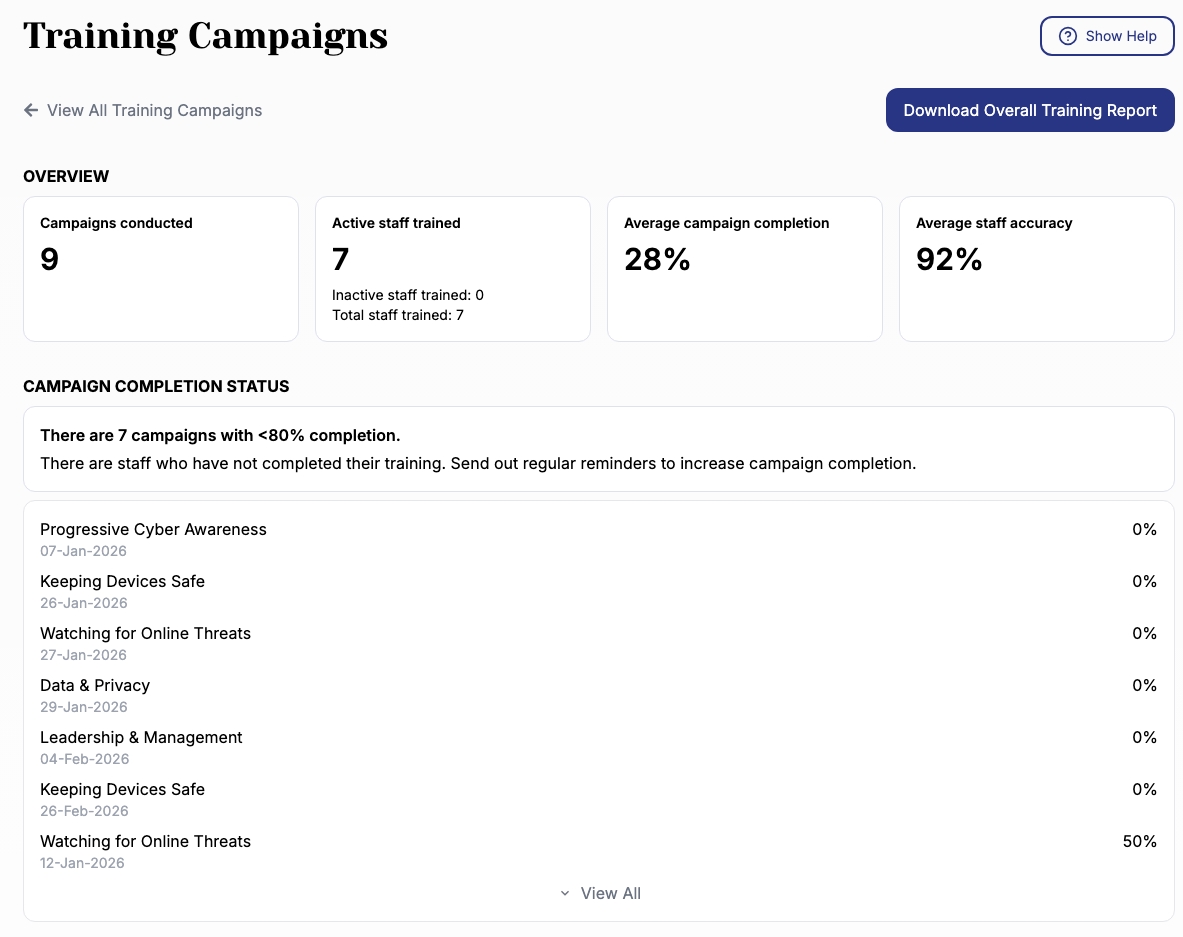
Reports help you:
-
Track compliance progress
-
Share results with management
-
Identify staff who need follow-up
Tips & Troubleshooting
-
No staff receiving emails?
Make sure your staff list is populated and emails are valid. -
Low completion rates?
Send reminders or follow up with staff who haven’t completed training. -
Want more targeted training?
Use different templates for different teams or risk areas.