Overview
Phishing simulations help you safely test how your staff respond to real-world email threats.
You’ll see who clicks, who reports, and where your team may need more awareness — so you can strengthen your human firewall.
Before You Start
Make sure the following is ready:
-
Your staff list is populated via Microsoft 365 or Google Workspace
-
Staff added via CSV or manual entry will not appear in phishing simulations
-
You have admin access to grant email permissions
Steps
1. Go to Phishing Simulator
- Navigate to Training → Phishing Simulator
2. Grant Email Permissions (Required First Step)
To run simulations, StrongKeep needs permission to send simulated emails.
-
Click to grant consent for direct mail injection
-
This must be done by an M365 or Google Workspace admin
-
Follow the on-screen instructions for your provider
This step ensures emails are delivered realistically — just like real phishing attempts.
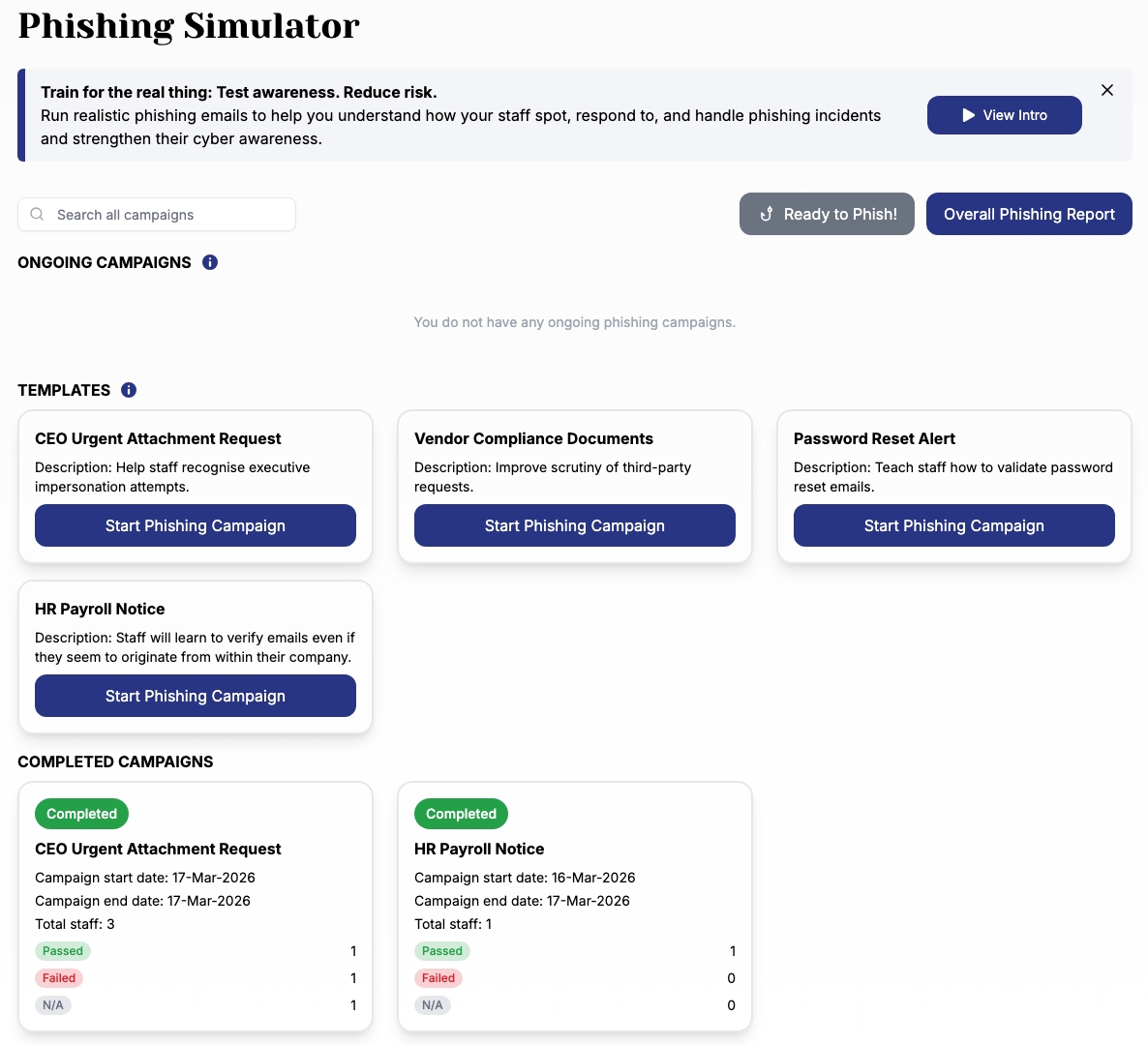
3. Choose a Template
- Browse available templates
Each template uses a different phishing tactic to train your staff.
Choose one that fits the scenario you want to test.
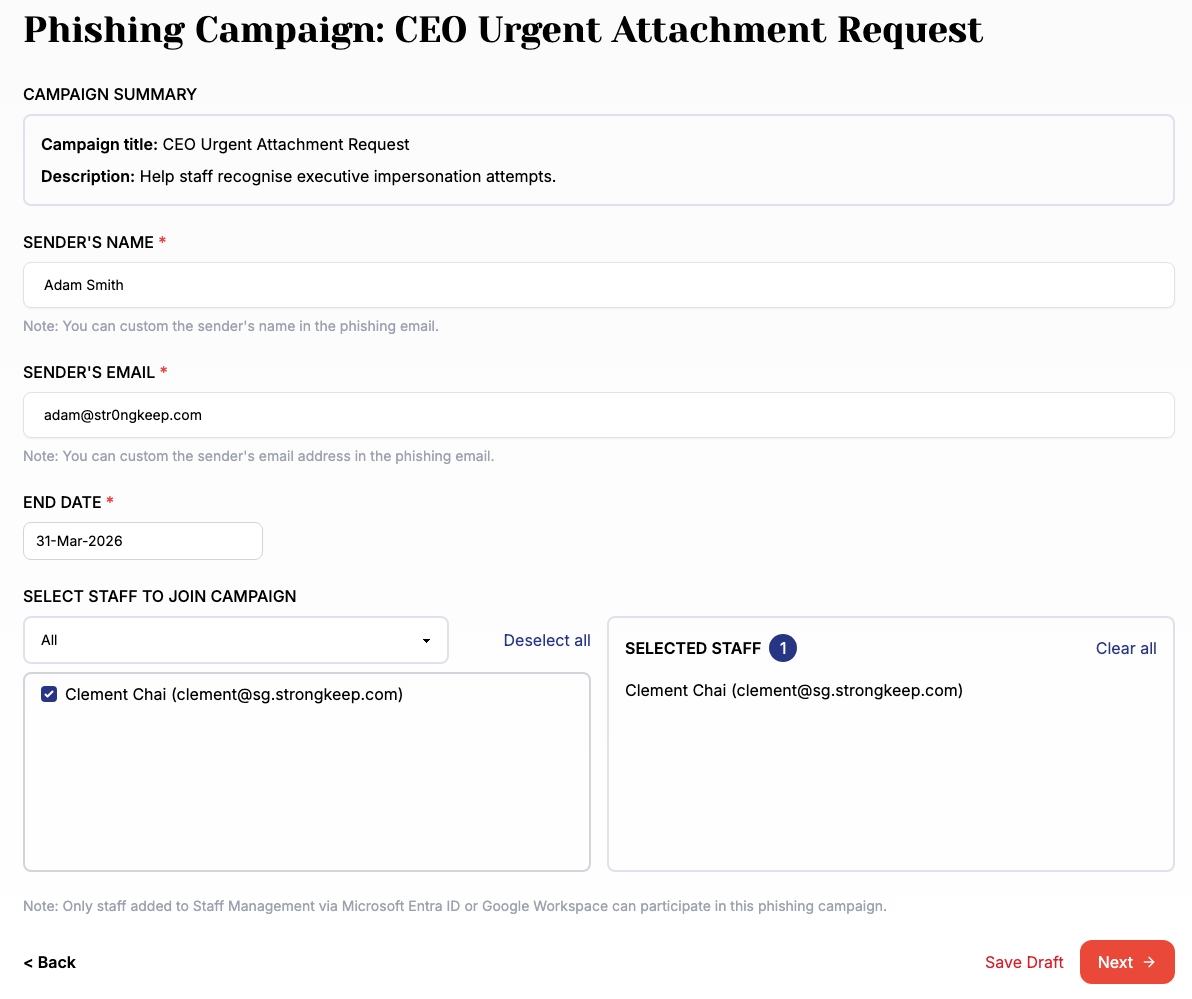
4. Configure Campaign Details
Fill in the key details:
-
Sender’s Name and Email
-
You can simulate a colleague (e.g. leadership)
-
Slight variations or misspellings make it more realistic
-
-
End Date
- Defines when the simulation ends and results are finalized
-
Target Staff Group
- Select users synced from Microsoft 365 or Google Workspace
5. Review and Preview
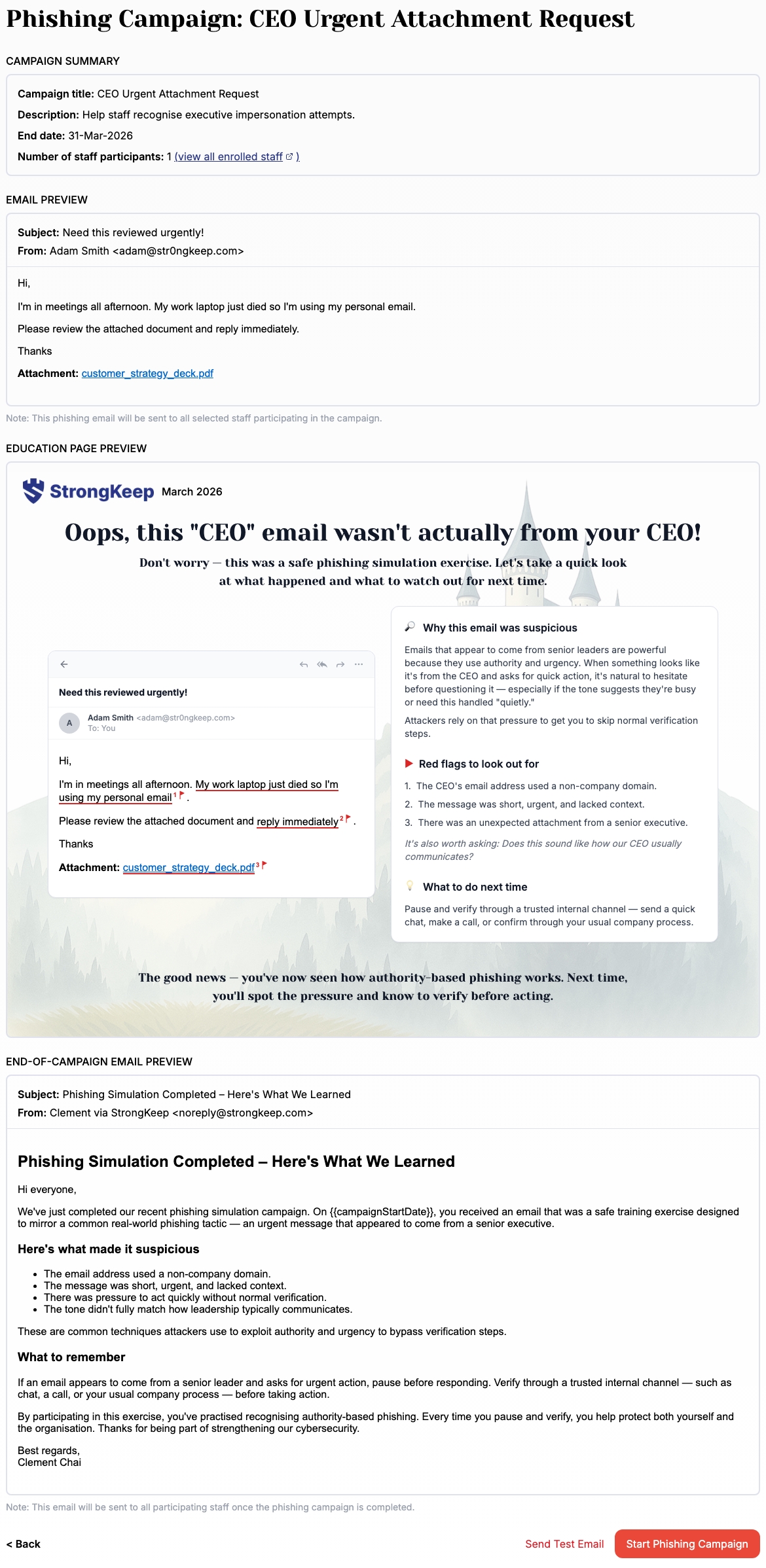
Before launching, you’ll see a full preview:
-
The phishing email
-
The landing page staff will see if they click
-
The post-simulation education page
-
The final summary email sent to staff
You can also:
-
Send a test email to yourself
-
Check that everything looks realistic and aligned
6. Launch the Campaign
- Click Start Phishing Campaign when ready
StrongKeep will handle delivery and tracking automatically.
After Launch
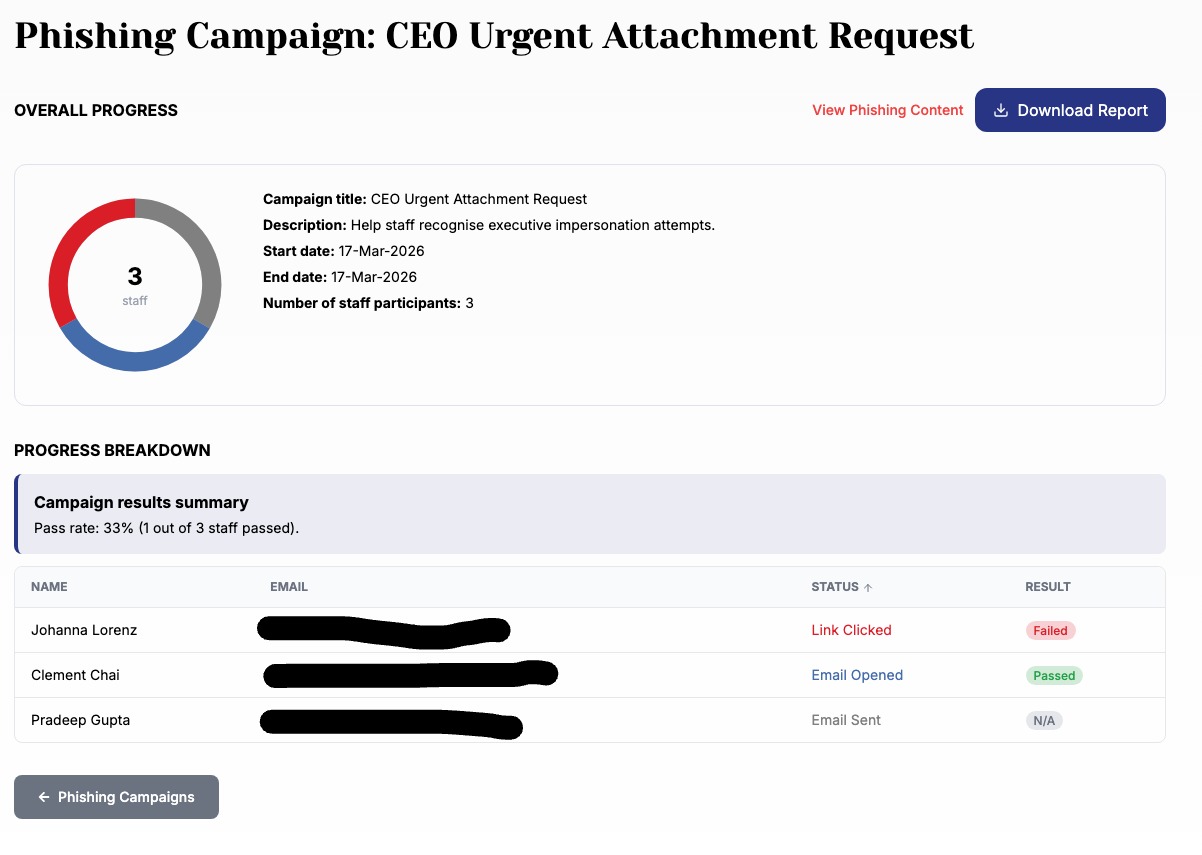
You can track results in real time:
-
Who opened the email
-
Who clicked the link
-
Who ignored or handled it correctly
Once the campaign ends:
-
A final summary is generated
-
You can download reports for individual campaigns or overall performance
Tips & Troubleshooting
-
Staff not showing up?
→ Make sure they were added via Microsoft 365 or Google Workspace sync -
Can’t proceed with setup?
→ Ensure admin consent for email injection is completed -
Want a realistic simulation?
→ Use familiar names and slightly altered emails — this mimics real attacks