 Help Center
What You’ll Need
Before you begin, make sure you have:
-
A StrongKeep Vaultwarden account (you should have received your login link from StrongKeep)
-
Access to your Vaultwarden web portal
-
Your email address and master password
Step 1: Install the Extension
For Google Chrome
-
Go to the official Bitwarden extension page on the Chrome Web Store:
https://chromewebstore.google.com/detail/bitwarden-password-manage/nngceckbapebfimnlniiiahkandclblb?hl=en -
Click Add to Chrome → Add extension.
-
Once installed, the Vaultwarden (Bitwarden) shield icon will appear beside your address bar.
-
Pin for quick access
For Microsoft Edge
-
Open the Edge Add-ons page:
https://microsoftedge.microsoft.com/addons/detail/bitwarden-password-manage/jbkfoedolllekgbhcbcoahefnbanhhlh -
Click Get → Add extension.
-
You’ll see the Vaultwarden icon appear next to your Edge toolbar.
-
Pin for quick access
Step 2: Connect to the StrongKeep Vaultwarden Server
By default, the extension points to Bitwarden’s public cloud — but StrongKeep uses a private, secure Vaultwarden server.
-
Open the extention on your browser and go to login.
-
Click the Accessing dropdown at the bottom, which by default is bitwarden.com and select "self-hosted"
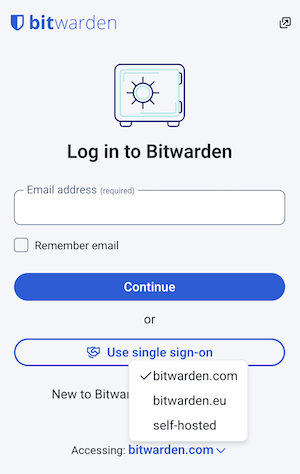
-
Under Server URL, enter the StrongKeep Vaultwarden URL:
https://vaultwarden.strongkeep.com -
Click Save.
The extension will reload and now point to StrongKeep’s secure server.
Step 3: Log In
-
Enter your email and master password (same as your Vaultwarden web login).
-
If you have Two-Factor Authentication (2FA) enabled, complete the verification.
You’re now connected to your StrongKeep Vault!
Step 4: Enable Autofill & Quick Access
To make password management effortless:
-
Right-click the Vaultwarden icon → Extension options.
-
Under Settings, enable:
-
Auto-fill on page load
-
Keyboard shortcuts (optional: press
Ctrl + Shift + Lto autofill)
-
-
You can pin the extension to your toolbar for quick access.
Tips for Smooth Use
-
Sync often: Click the Vaultwarden icon → “Settings” → Sync now to pull the latest updates.
-
Add items directly from login pages: When you enter a new password, Vaultwarden will offer to save it automatically.
-
Use folders or collections: Keep your logins organised by department or project.
-
Share securely: If you have team sharing enabled, you can share credentials safely with teammates via Collections.
Troubleshooting
- Extension not working properly?
Update the extension by removing the Bitwarden extension from your browser, then adding it again using the links in Step 1. After reinstalling, repeat Step 2 to point it back to the StrongKeep server before logging in.
Sir Stonk’s Tip: “A strong password is like good armor — use it everywhere, keep it polished, and never lend it out.”