 Help Center
Overview
During guided onboarding you may have added a first batch of staff to distribute device protection or send the first training quiz. Once onboarding is done, Staff Management is where you add the rest of your team, organise them, and keep their protection and training up to date.
From here, you can:
- Add and organise your staff
- Send training to improve cyber awareness
- Give access to the Staff Portal for installers and tools
- Track each person's cyber posture at a glance
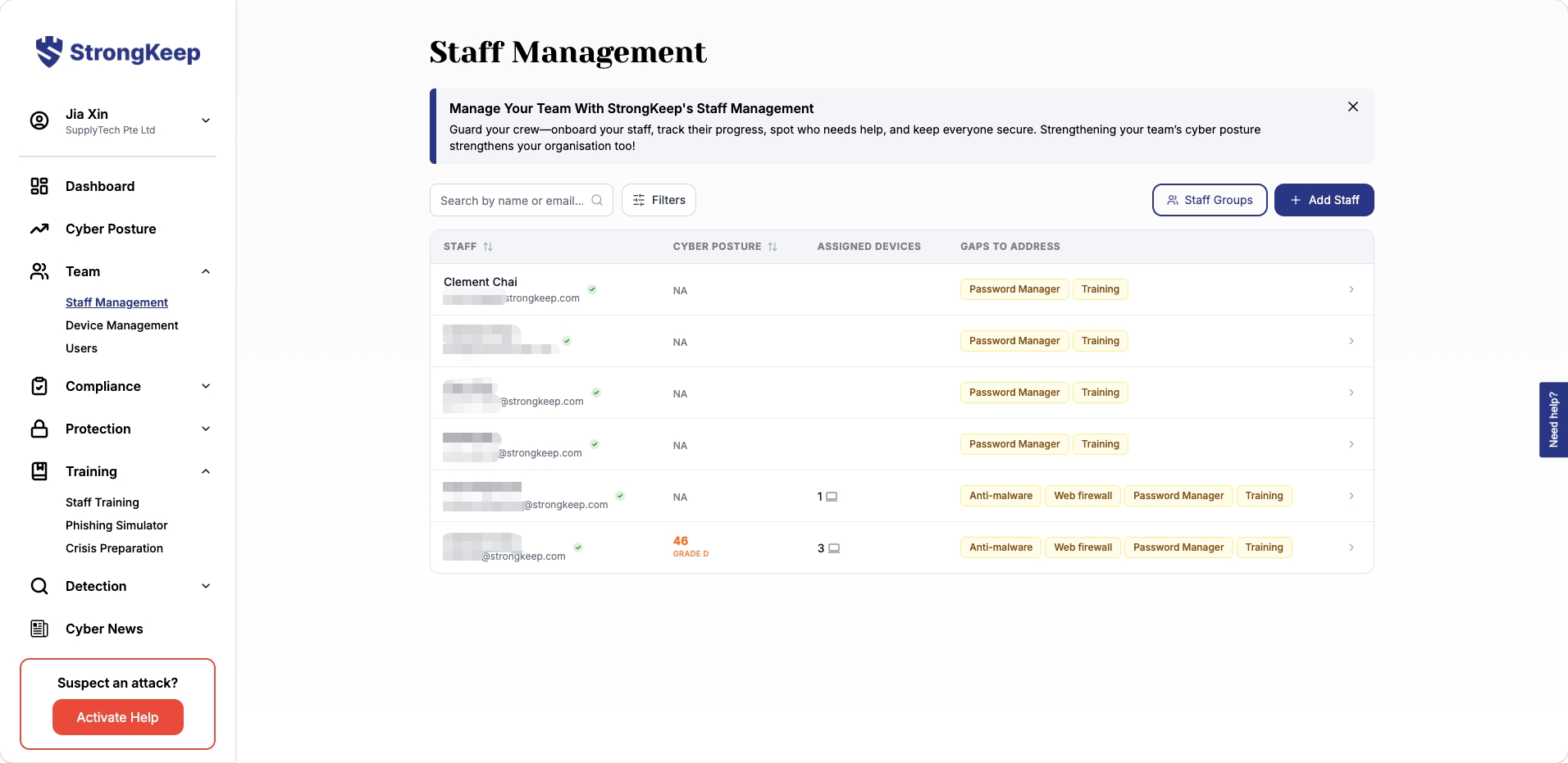
Each row shows a staff member's Cyber Posture grade, how many devices are assigned to them, and any Gaps to Address (e.g. Anti-malware, Web firewall, Password Manager, Training) still outstanding.
How to Add Staff
- Go to Staff Management.
- Click Add Staff.
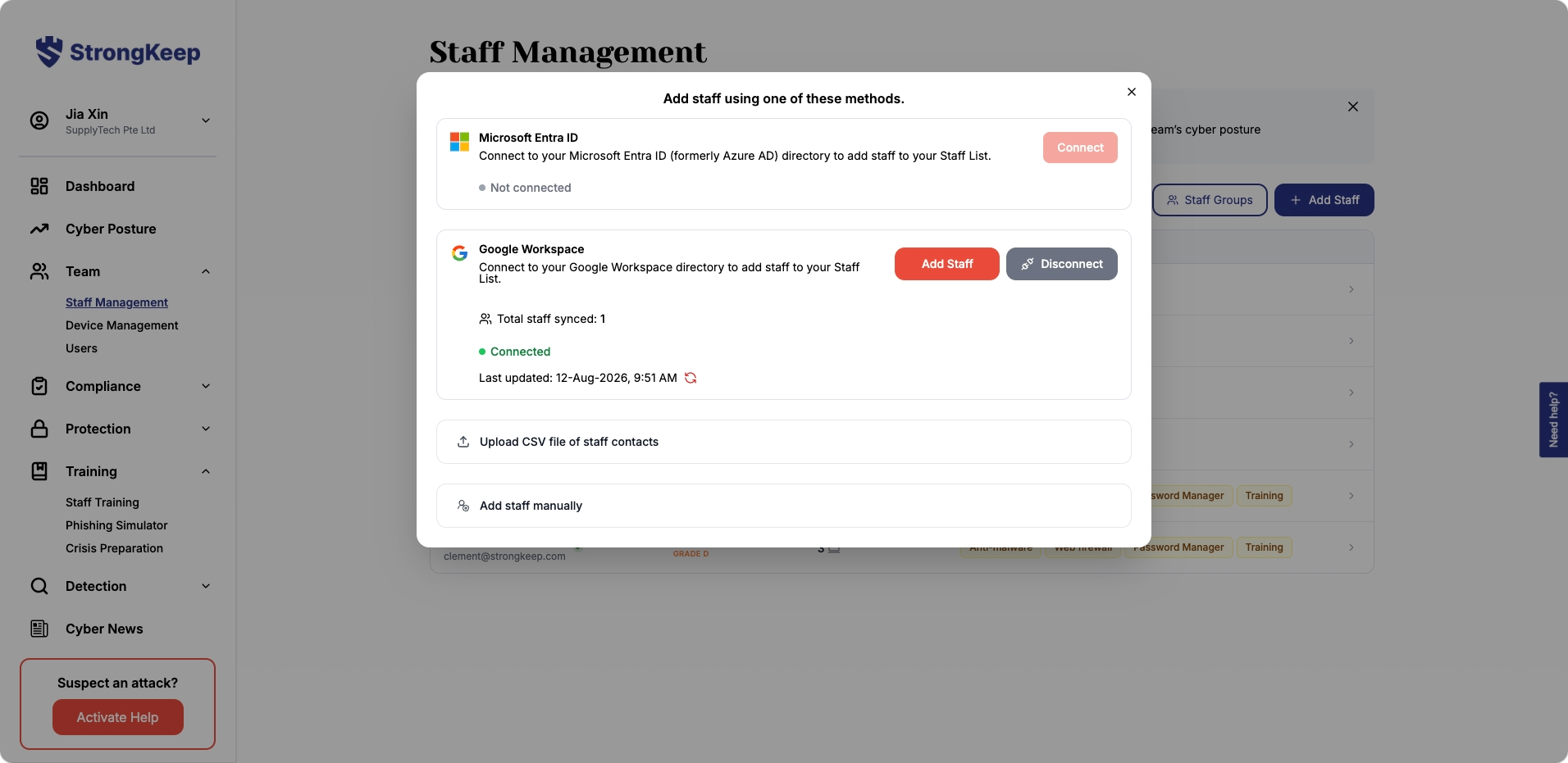
- Choose one of four methods:
- Microsoft Entra ID (formerly Azure AD, needs admin access) — connect to sync your directory automatically.
- Google Workspace (needs admin access) — connect and click Add Staff to pull your staff list; StrongKeep shows total staff synced and when it last updated.
- Upload CSV file of staff contacts.
- Add staff manually.
- Follow the prompts to complete setup, then send invitations.
What You Can Do in Staff Management
Invite Staff to the Portal
When you invite a staff member:
- They receive an email invitation.
- They can log in to their Staff Portal.
- They can access installers and complete training themselves — without needing IT support for every step.
Track Cyber Posture
Each staff member has a simple status view so you can quickly see:
- If their device is protected.
- If password security is enabled.
- If training has been completed.
This makes it easy to spot gaps and follow up.
Assign Devices and Services
You can assign protection tools and services to each staff member. This ensures the right people are protected, licenses are used properly, and nothing is missed.
Organise Staff into Groups
Create staff groups to stay organised — for example Finance, Operations, or New Joiners. Groups help you send training to specific teams, manage departments separately, and roll out protection in batches.
Tips & Troubleshooting
- Staff member didn't receive the invite? Check their email address and resend it.
- CSV upload failing? It must follow the provided template format — errors will be shown for invalid entries before you confirm the import.
- Directory sync failing? Reconnect your Microsoft Entra ID or Google account and refresh the page.
Next step: Training your staff