 Help Center
Overview
Training your staff is one of the simplest ways to reduce everyday cyber risks. Once your staff list is set up, StrongKeep lets you roll this out in minutes — from onboarding new hires to ongoing awareness training.
Step 1: Go to Training Campaigns
From your dashboard, go to Training → Staff Training.
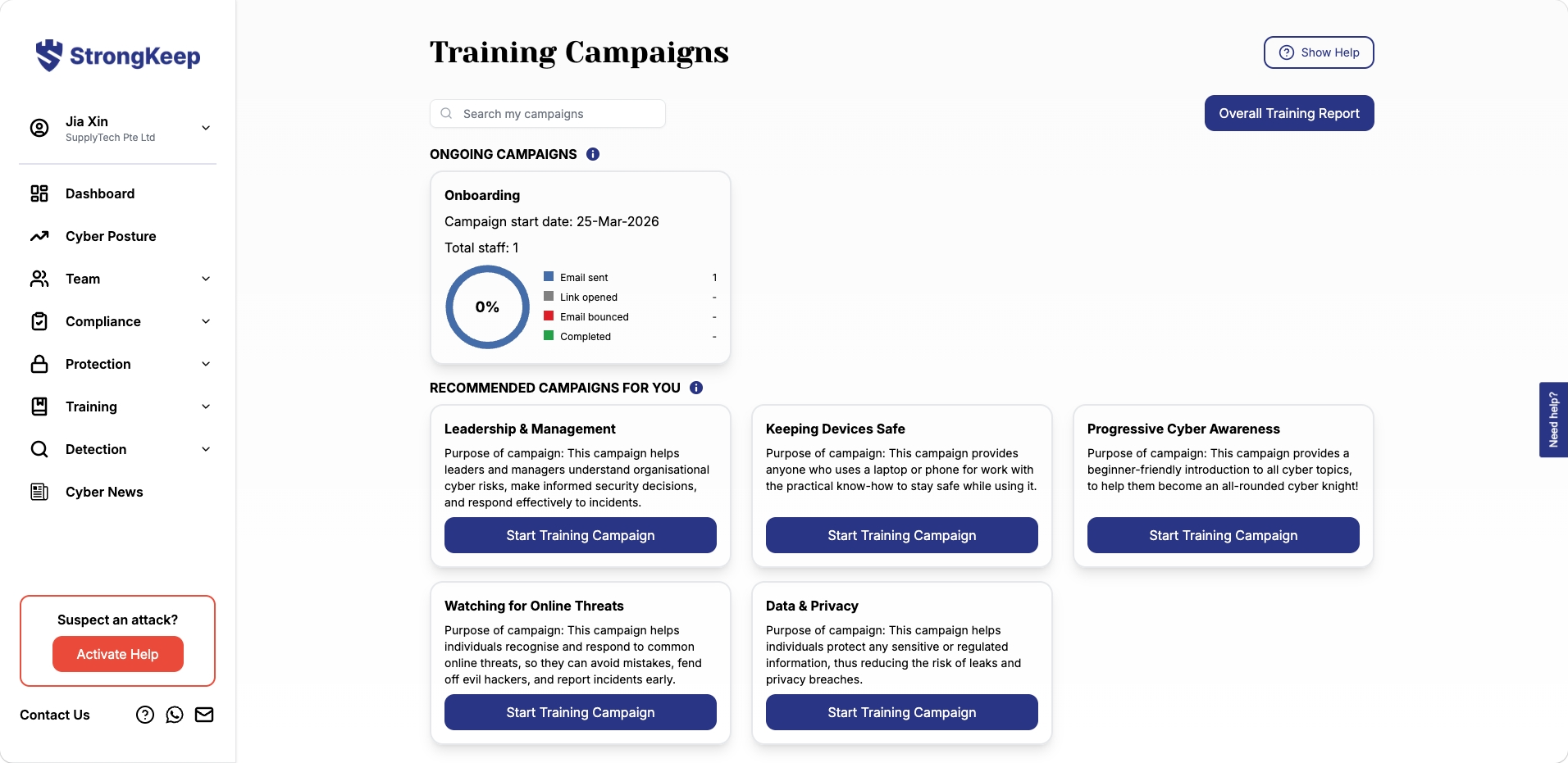
Any campaign already running — like the Onboarding campaign started during guided onboarding — shows under Ongoing Campaigns with a live completion breakdown: emails sent, links opened, bounced, and completed.
Under Recommended Campaigns for You, you'll see ready-made templates to get started quickly.
Step 2: Choose a Campaign
Option A (Recommended): Use the default Onboarding campaign
This is ready out of the box for new hires — no setup needed.
Option B: Start a new campaign
Pick from templates like:
- Leadership & Management
- Keeping Devices Safe
- Progressive Cyber Awareness
- Watching for Online Threats
- Data & Privacy
These help you target specific risks your team faces. Click Start Training Campaign on the template you want.
Step 3: Set the End Date and Select Staff
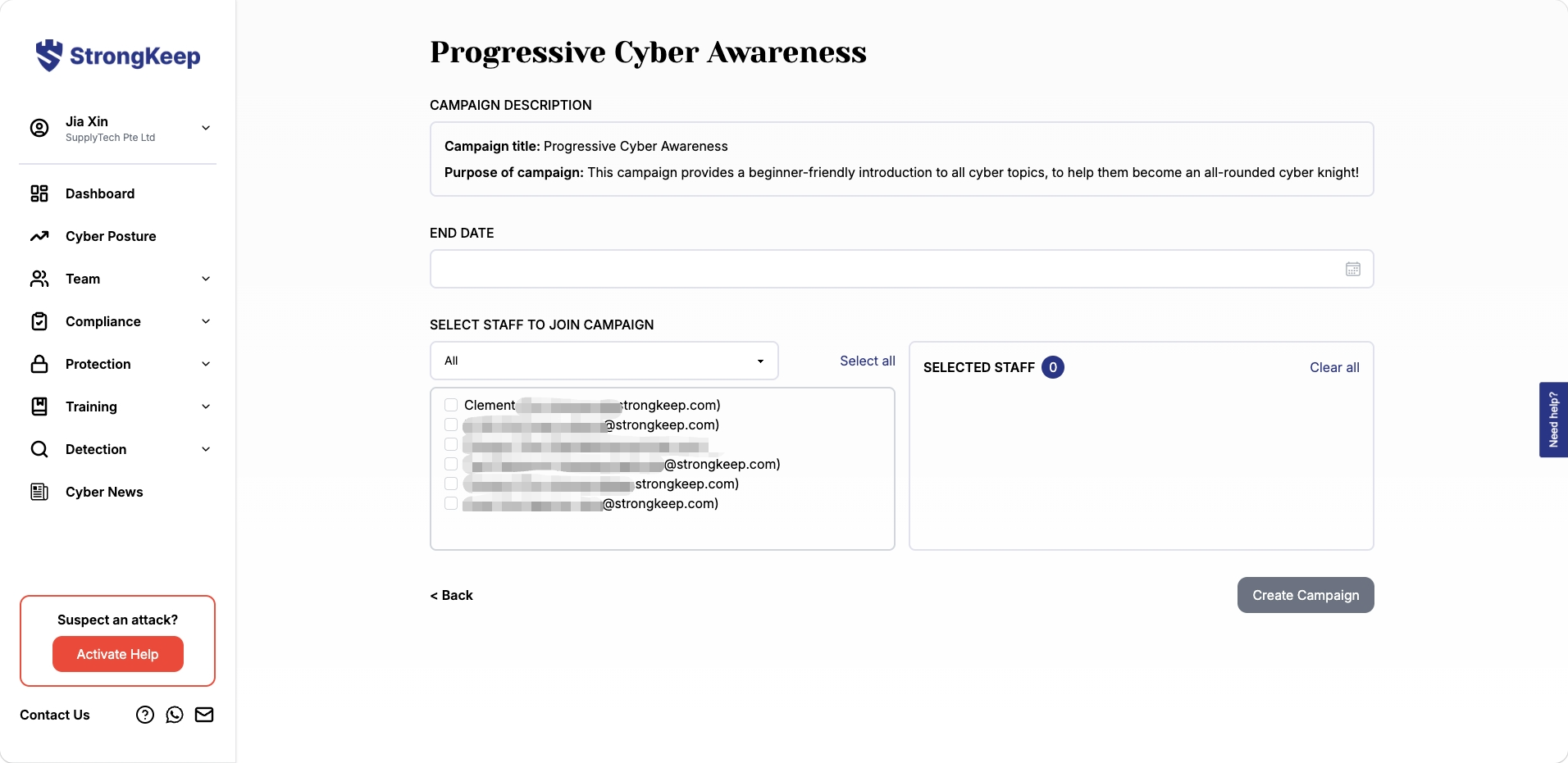
Set an end date for the campaign, then choose which staff should join — pick individuals from your staff list or select all.
Step 4: Review the Summary and Email Preview
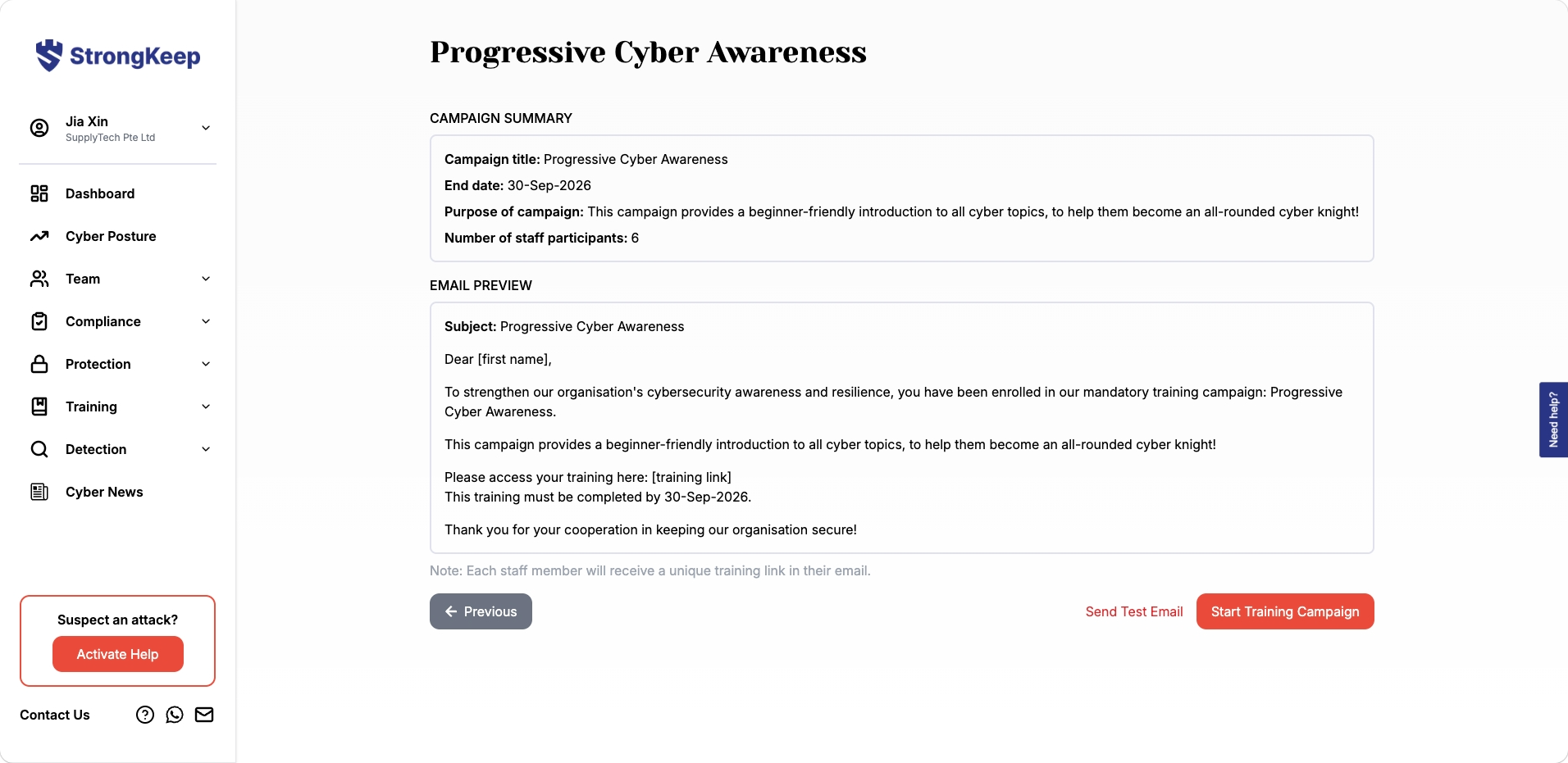
Before launching, review the campaign summary (title, end date, purpose, number of participants) and the email preview each staff member will receive.
- Click Send Test Email to preview it yourself first.
- Each staff member gets their own unique training link — quiz questions are randomised per person to keep things fair and prevent answer sharing.
Step 5: Launch the Campaign
Click Start Training Campaign. Emails are sent to your staff automatically — that's it, your training is live.
Step 6: Track Progress and Results
After launching, monitor how your team is doing in real time from the campaign's card under Ongoing Campaigns:
- Overall completion rate
- Number of staff who completed training
- Email delivery and engagement (sent, opened, bounced)
Step 7: Download Reports
Export results anytime:
- Campaign Report — for a single campaign.
- Overall Training Report — across all campaigns.
Reports help you track compliance progress, share results with management, and identify staff who need follow-up.
Tips & Troubleshooting
- No staff receiving emails? Make sure your staff list is populated and emails are valid.
- Low completion rates? Send reminders or follow up with staff who haven't completed training.
- Want more targeted training? Use different templates for different teams or risk areas.
Next step: Get started with compliance certification