 Help Center
Overview
Protecting your devices keeps your business safe from malware, phishing, and unsafe websites.
With StrongKeep, you can:
- See every device, its owner, and its protection status in one place
- Distribute protection to your team by email, or download and install it yourself
- Track anti-malware and web firewall status as devices come online
Once set up, StrongKeep keeps watch so you don't have to.
If you already protected a device or two during guided onboarding, you're in the right place — this is the same Device Protection flow, and you can use it to cover the rest of your team's devices.
Step 1: Open Device Management
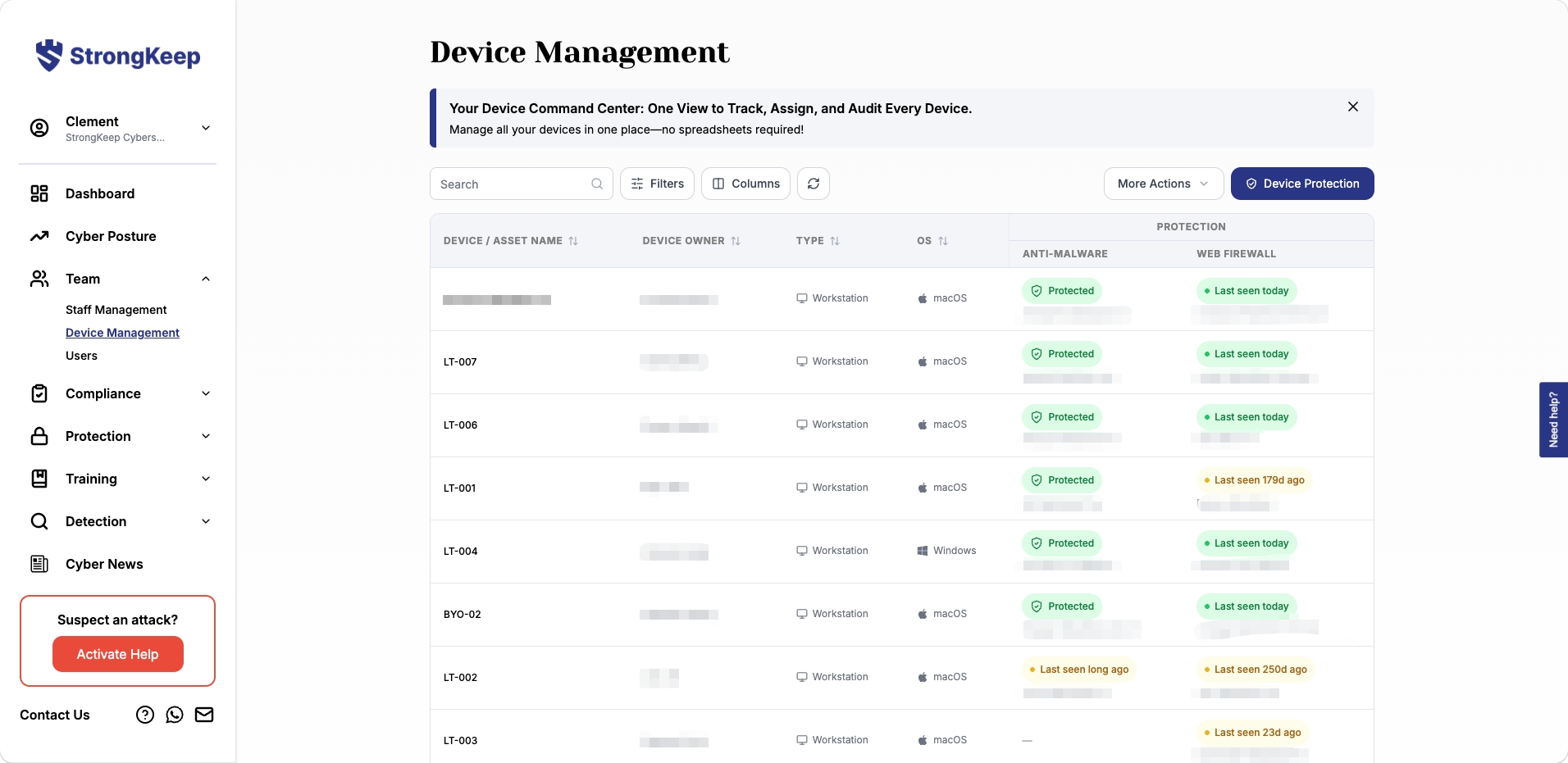
Go to Team → Device Management to see every device, its owner, type, OS, and protection status (Anti-Malware and Web Firewall) at a glance.
Click Device Protection in the top right to start protecting devices that aren't covered yet.
Step 2: Check Your Device Coverage
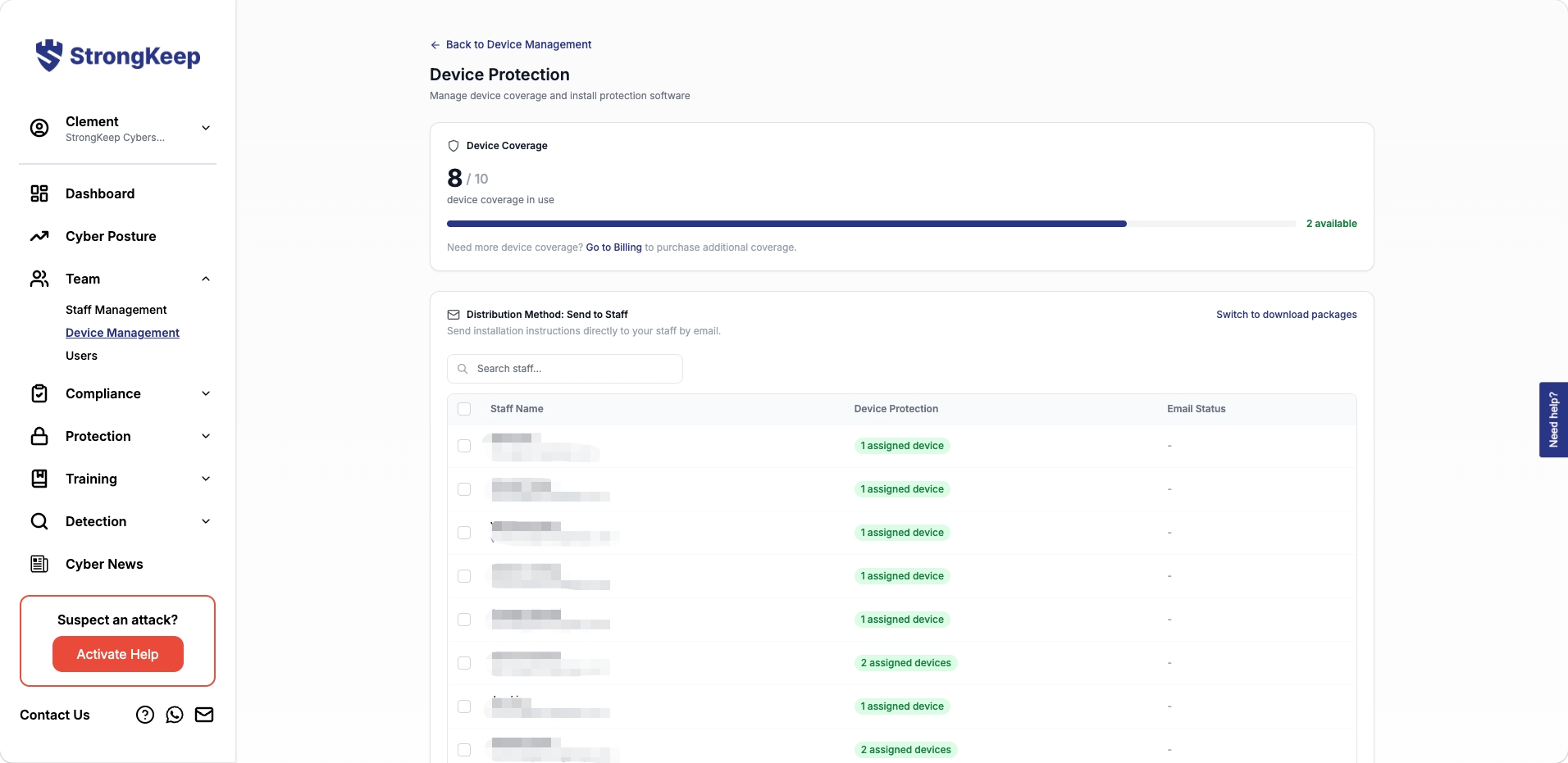
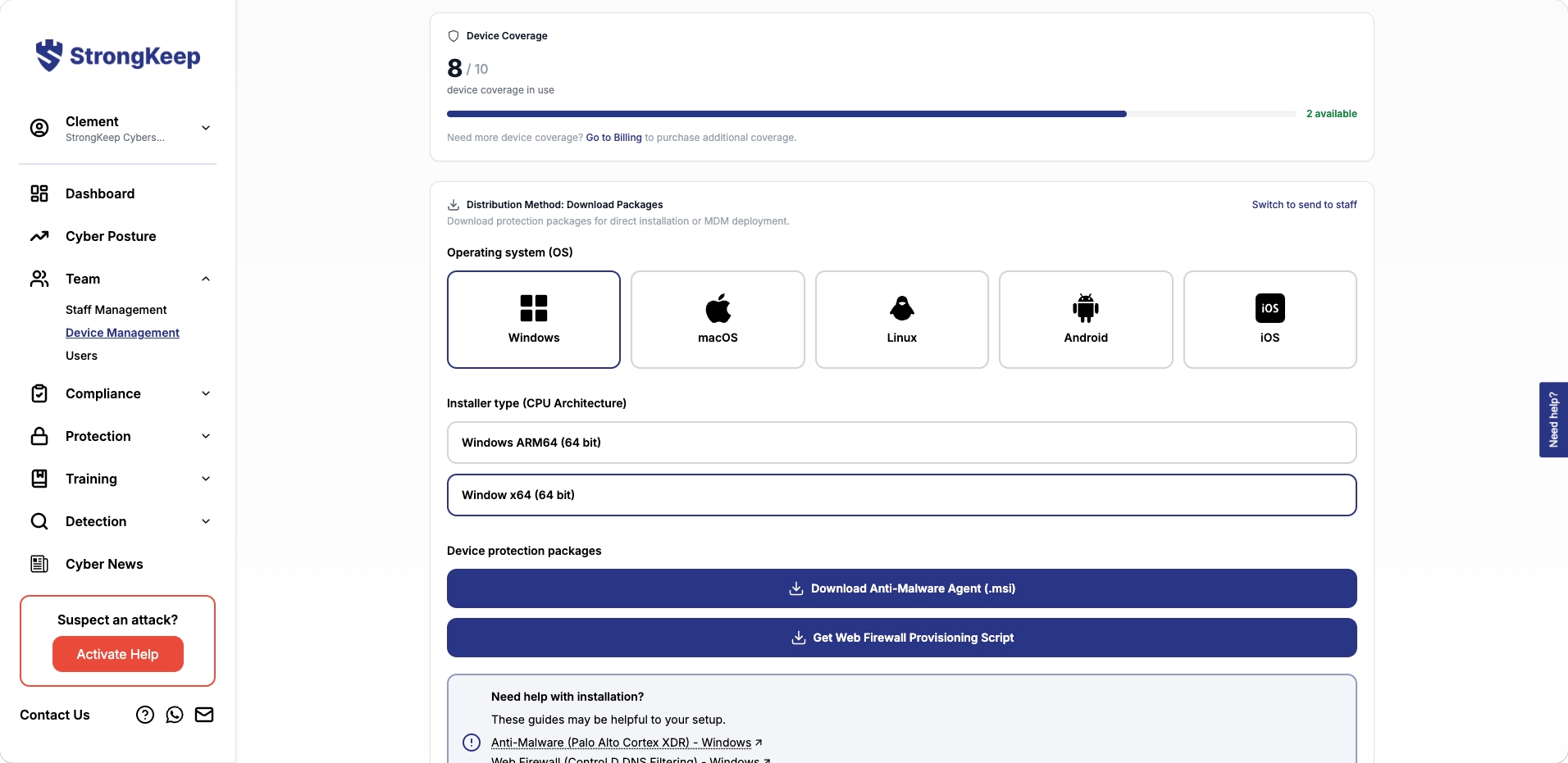
Your plan covers a set number of devices (e.g. 8/10 in use). If you're at your limit, click Go to Billing to purchase additional coverage before adding more devices.
Step 3: Choose a Distribution Method
You can switch between the two methods at any time from either page.
Option A: Send to Staff (recommended)
- Select the staff members who need protection from your staff list.
- StrongKeep emails each person their own installation instructions.
- Track Device Protection and Email Status for each person right on this page.
Each person gets an email listing exactly what they'll install — for example Cortex by Palo Alto Networks (anti-malware) and Control D (web firewall).
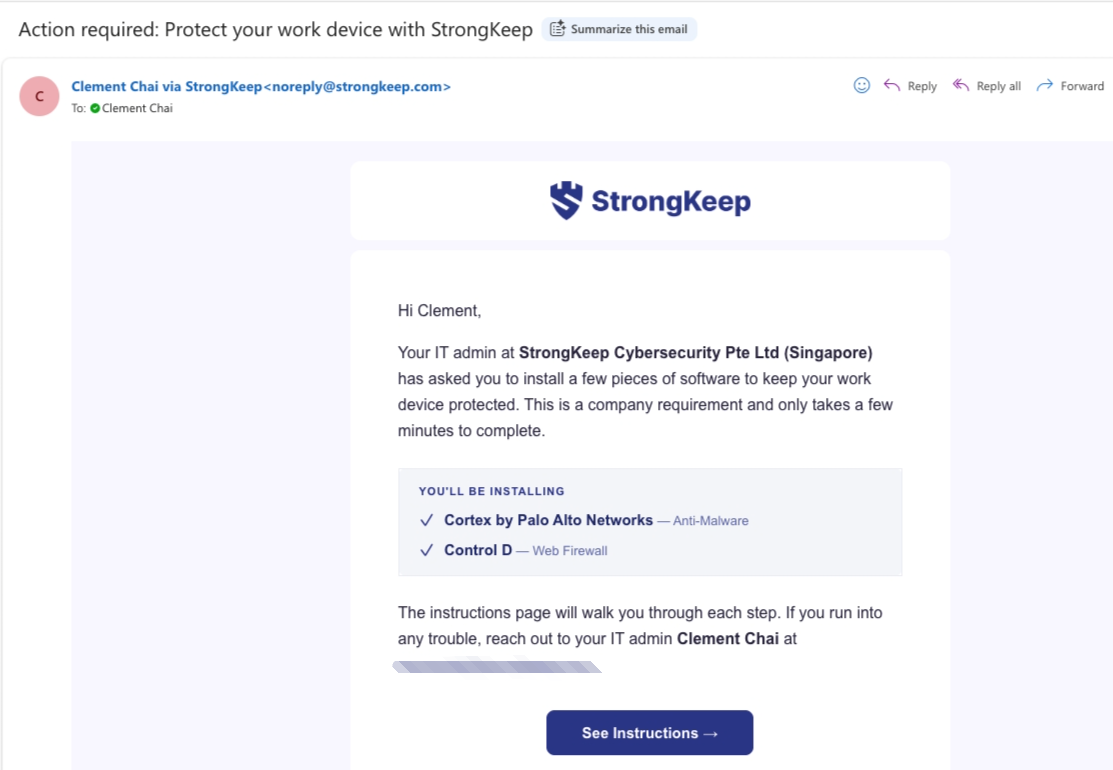
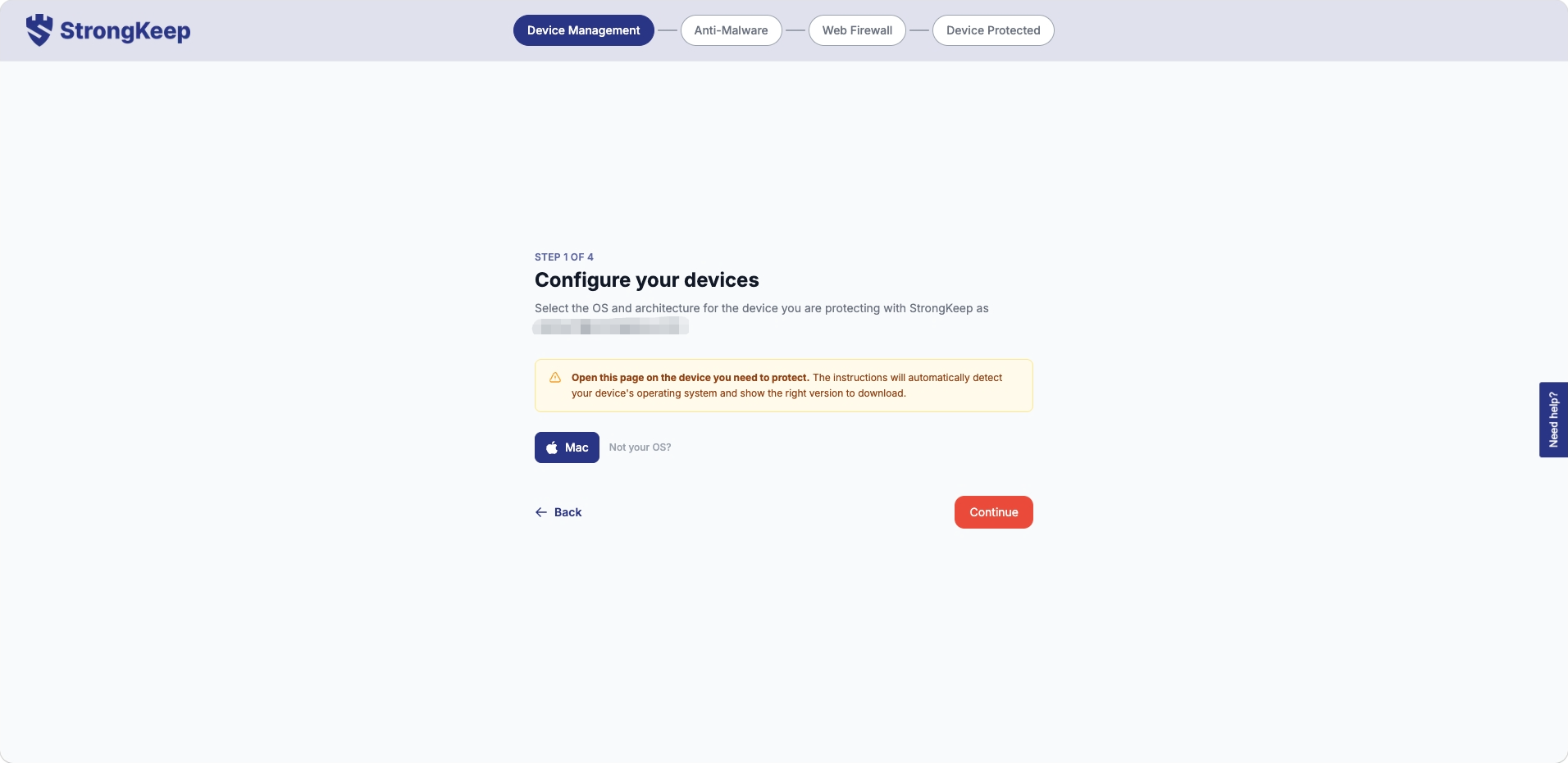
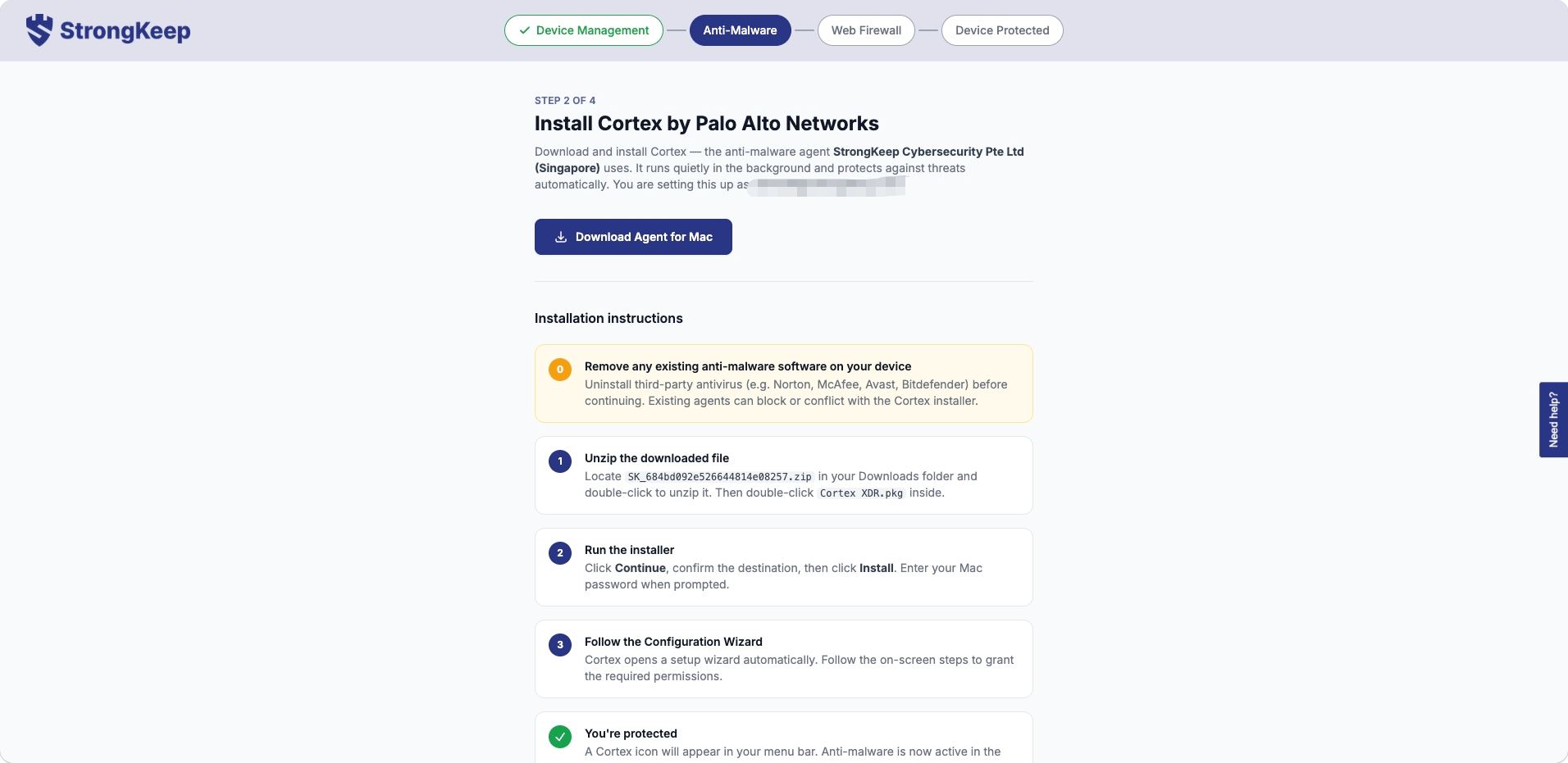
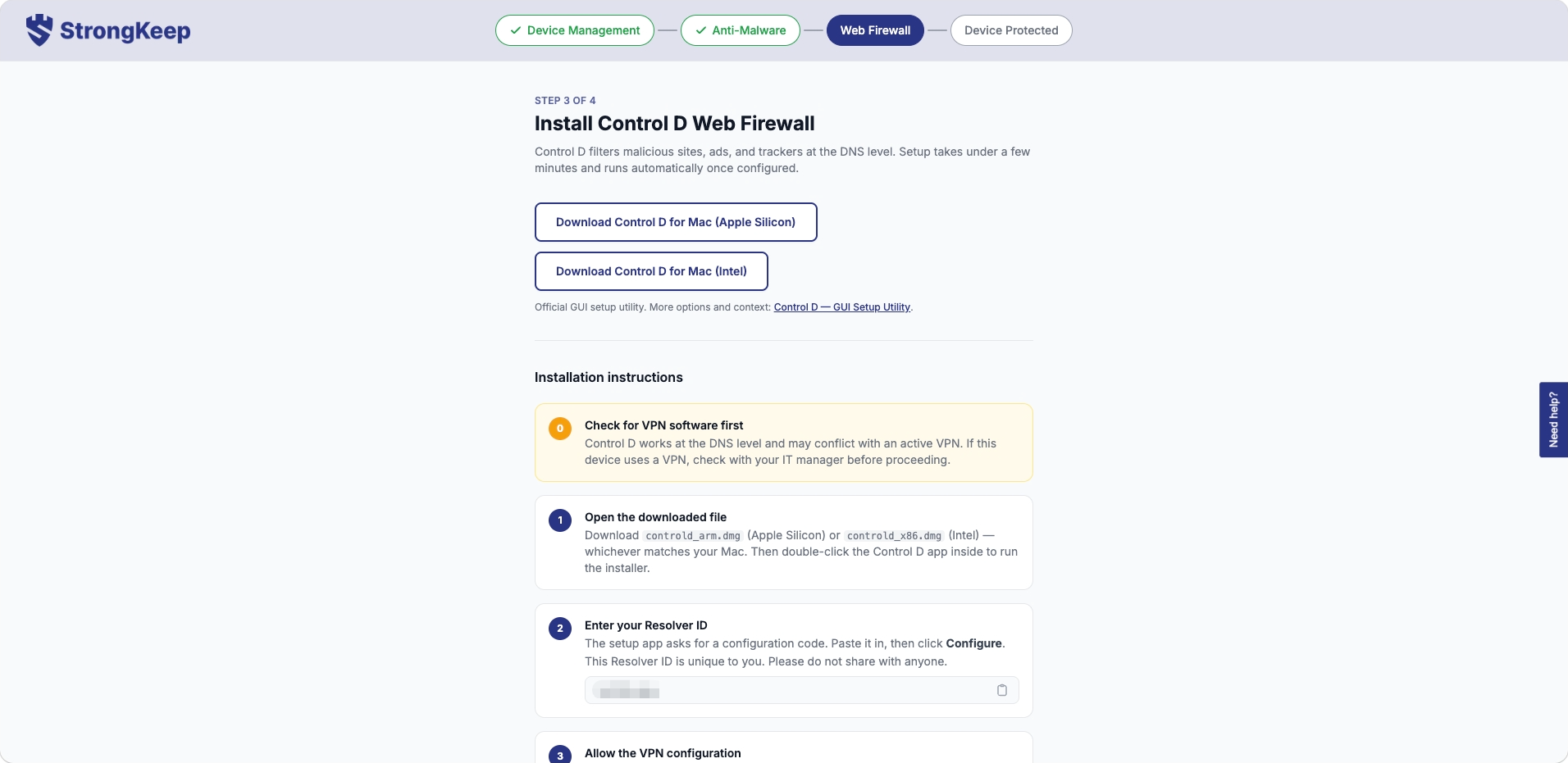
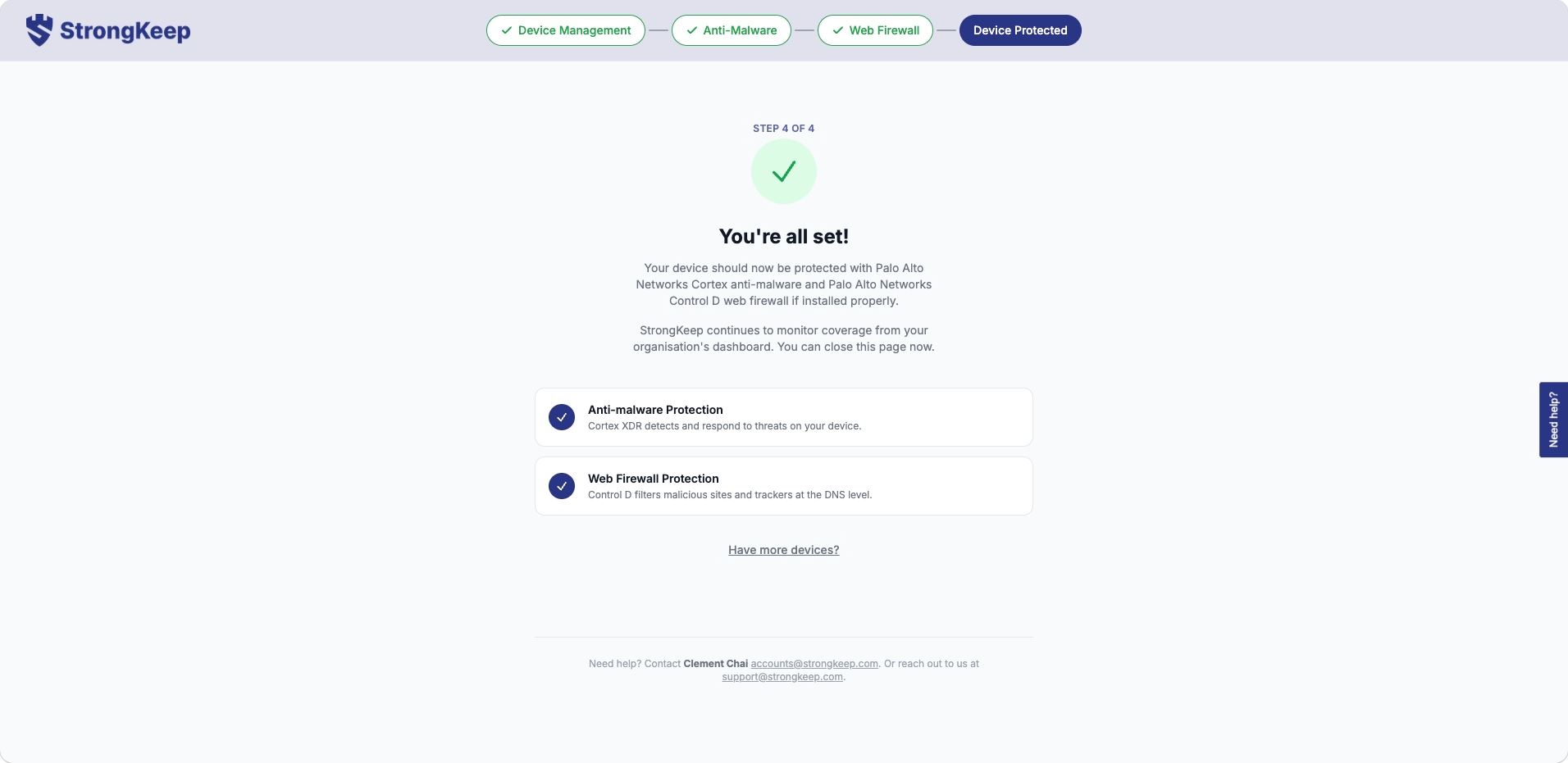
Clicking See Instructions opens a guided setup that walks them through 4 steps:
- Configure your device — auto-detects their OS (they must open the page on the device being protected).
- Install Cortex (Anti-Malware) — download and install, including removing any conflicting third-party antivirus first.
- Install Control D (Web Firewall) — download and install, with a warning to check for conflicting VPN software first, since it filters at the DNS level.
- Confirmation — "You're all set!" once both are installed, with a link to repeat the process for more devices.
Option B: Download Packages
Use this if you'd rather install directly or roll out through an MDM.
- Click Switch to download packages.
- Choose the device's operating system and CPU architecture.
- Download the Anti-Malware Agent and Web Firewall Provisioning Script.
What Happens Next?
- Devices start reporting activity to StrongKeep as soon as protection is installed.
- It can take a while for a newly protected device to appear in the list — click the sync button on Device Management to refresh it manually.
- Back in Device Management, each device shows Protected with a Last seen timestamp — devices that go quiet for a while (e.g. "Last seen 179d ago") are worth following up on.
- Everything stays visible in one place, so nothing slips through.
Tips & Troubleshooting
- Device not showing up after installation? It can take a while to appear — click sync on Device Management to update the list manually.
- Hit your device coverage limit? Go to Billing to purchase additional coverage.
- Anti-malware install failing? Uninstall any existing third-party antivirus (Norton, McAfee, Avast, Bitdefender, etc.) first — it can conflict with the Cortex installer.
- Web firewall install failing? Check for active VPN software on the device — Control D works at the DNS level and can conflict with a VPN.
- Staff didn't get the email? Check their address in the staff list and resend from Device Protection.
- Need to remove a device? Uninstall protection first before deleting it from Device Management.
- Not sure a device can run the agent? Check the Minimum System Requirements.