 Help Center
Overview
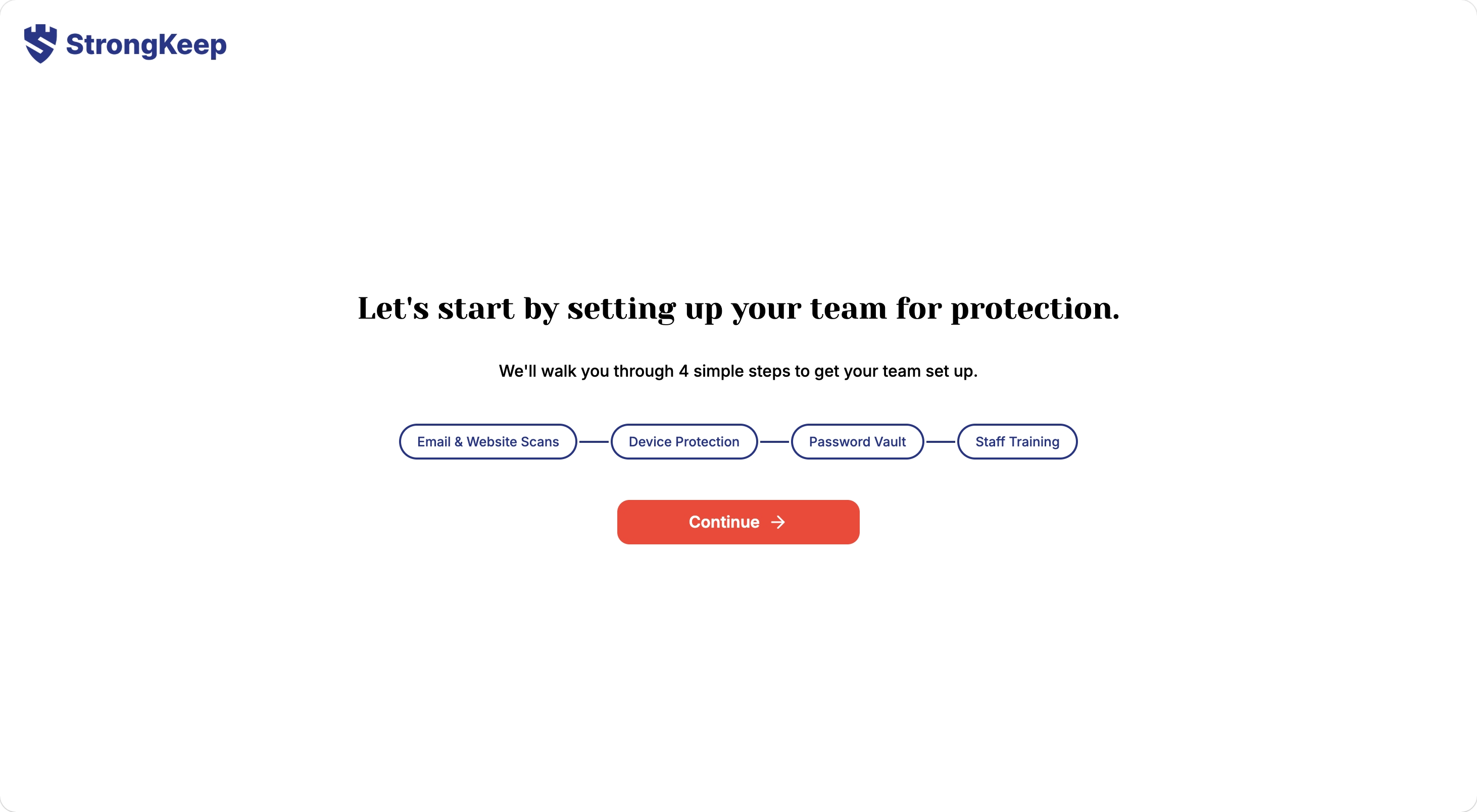
Right after you sign up and verify your email, StrongKeep drops you straight into guided onboarding — a 4-step walkthrough that gets your team's core protection in place.
The 4 steps are:
- Email & Website Scans
- Device Protection
- Password Vault
- Staff Training
You can see your progress at the top of the screen at any time, and completed steps are marked with a green check. If you'd rather skip a step and come back to it later, click Skip to next setup in the top right.
Step 1: Email & Website Scans
Confirm the work email and organisation website StrongKeep should scan for security gaps.
- Confirm your work email.
- Enter your organisation website — or tick No website if you don't have one.
- Click Continue.
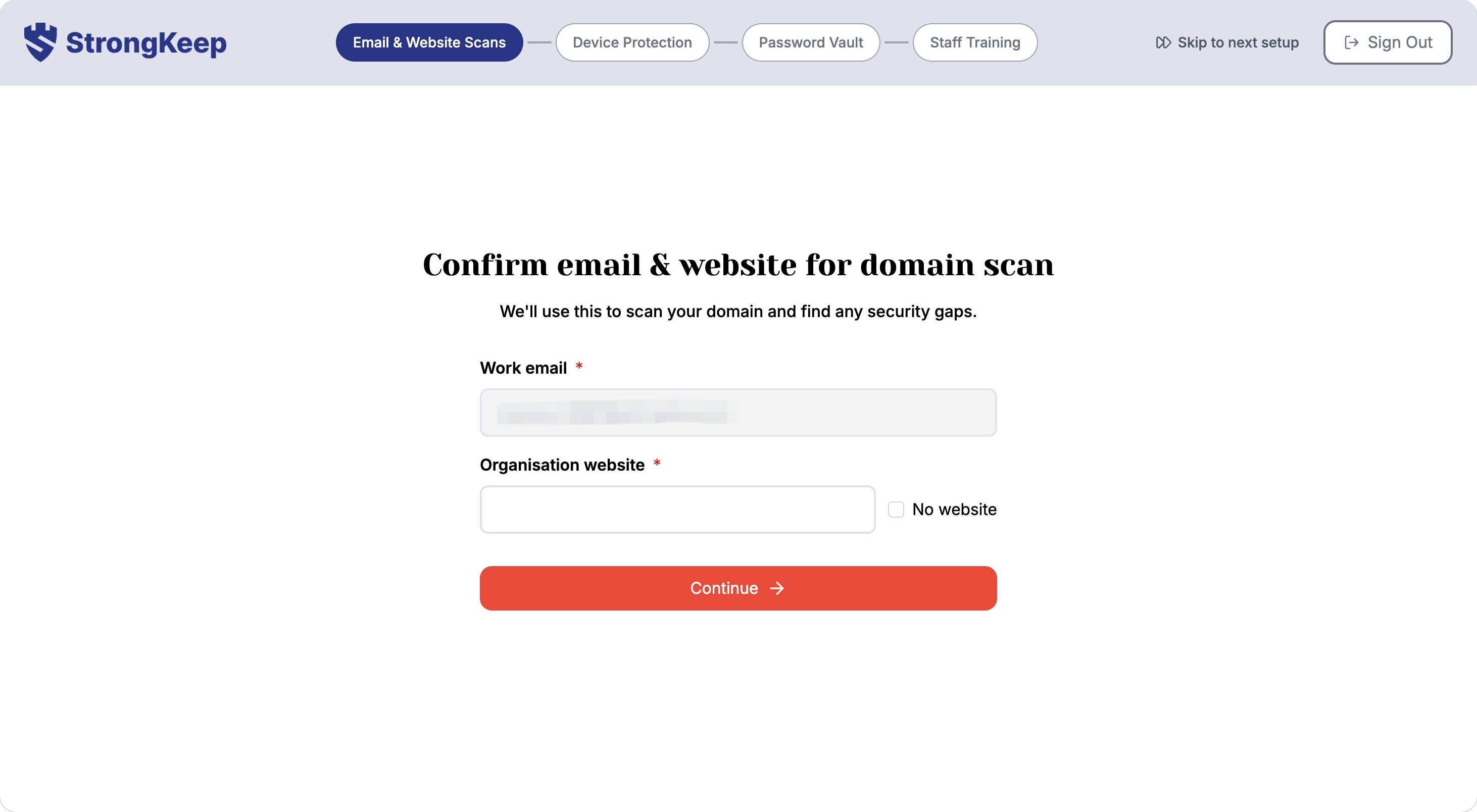
StrongKeep starts scanning your mail server and website security in the background. If your company owns other domains or subdomains, see Adding other domains you own for scanning.
Step 2: Device Protection
Choose how you want to get anti-malware and the web firewall onto your team's devices.
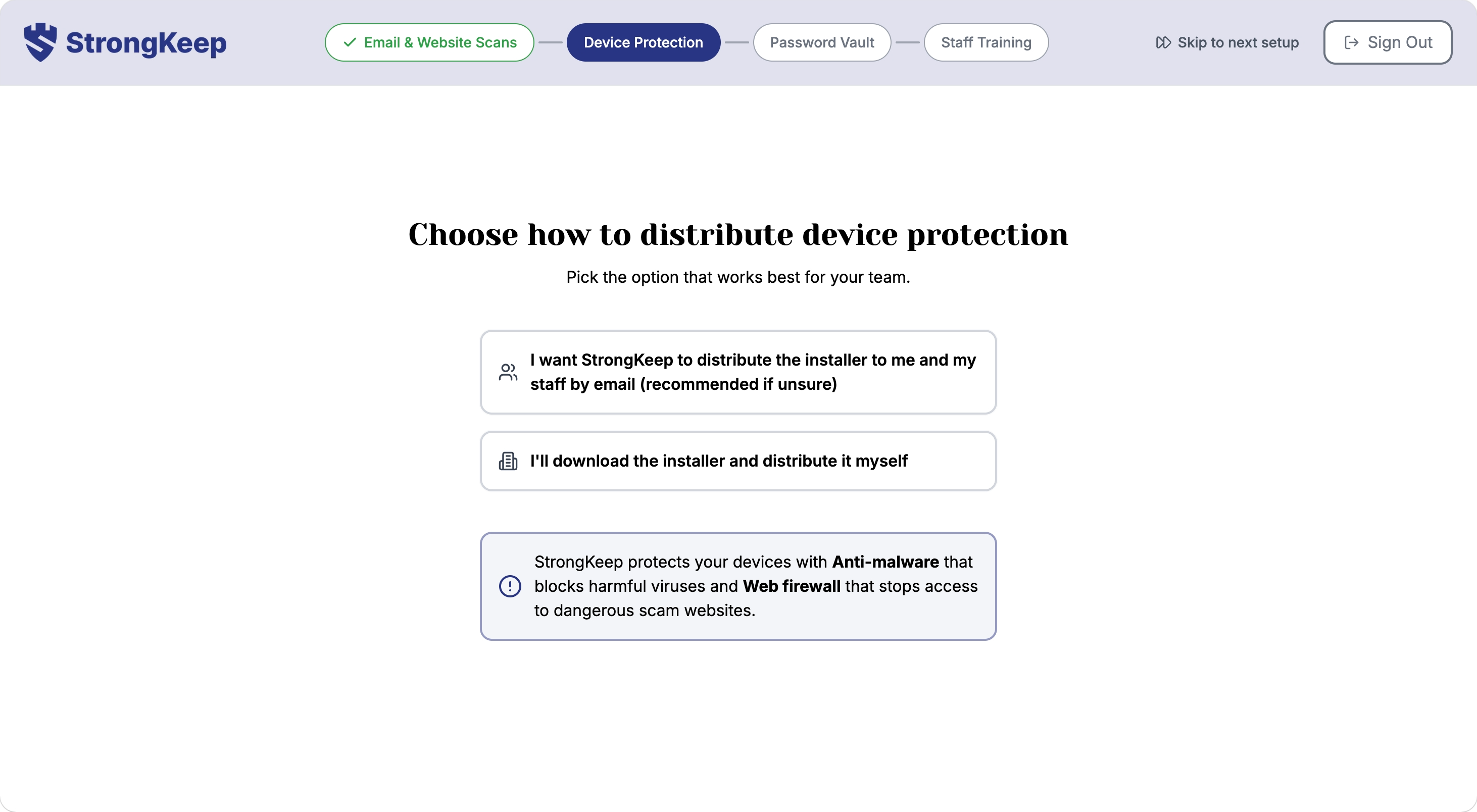
- I want StrongKeep to distribute the installer to me and my staff by email (recommended if unsure) — you'll be asked to build your staff list (see Building your staff list below), then StrongKeep emails each person their installer automatically.
- I'll download the installer and distribute it myself — pick your operating system and CPU architecture, then download the Anti-Malware Agent and the Web Firewall Provisioning Script to install yourself.
For the full setup and troubleshooting steps, see Protecting your devices.
Step 3: Password Vault
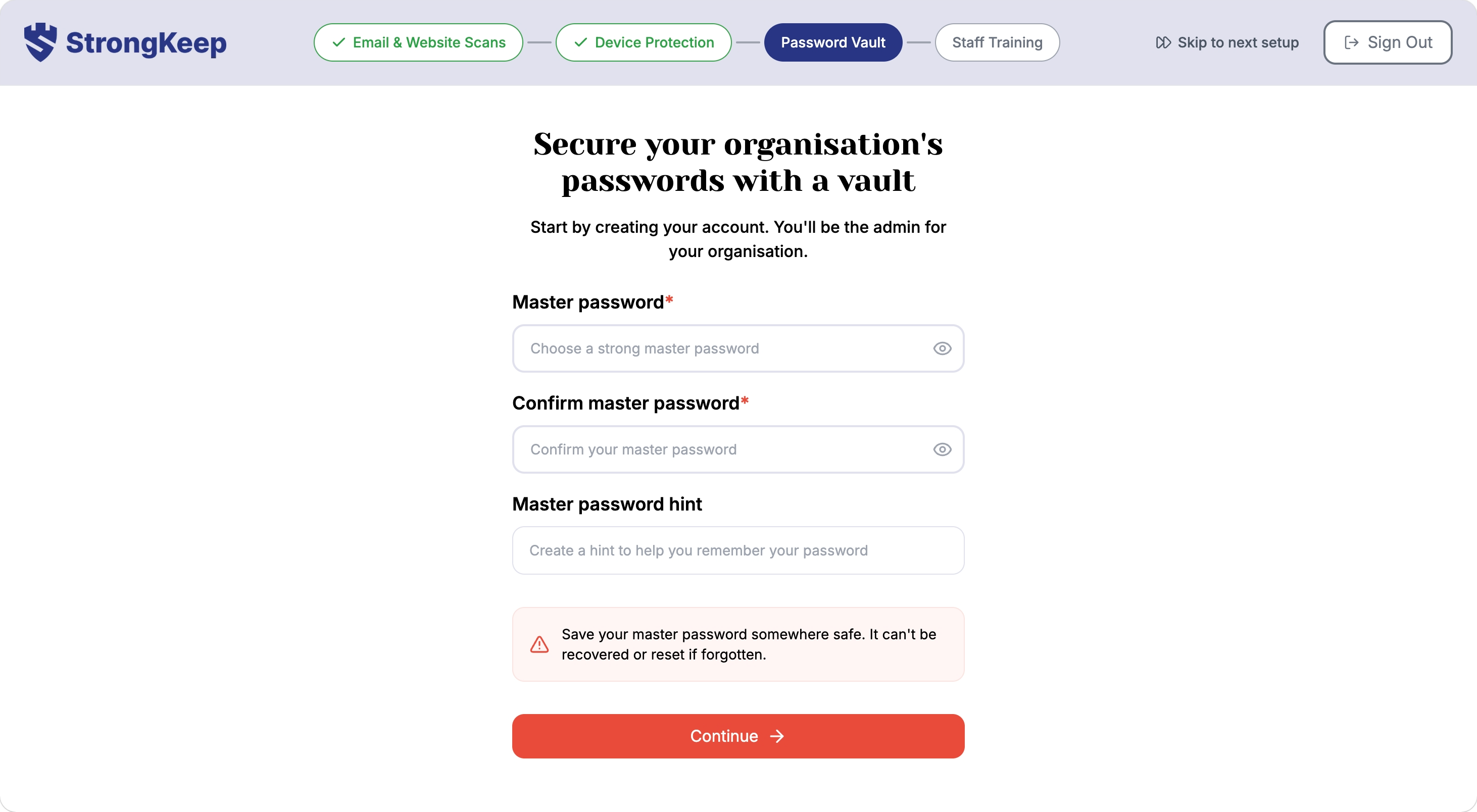
Set up your organisation's Password Vault and become its admin.
- Choose a strong master password.
- Confirm it.
- (Optional but recommended) Add a master password hint — something only you'll understand.
- Click Continue.
⚠️ Your master password can't be recovered or reset if you forget it — save it somewhere safe before continuing.
If you haven't added any staff yet, you'll be asked to build your staff list here too, so you can invite them to the vault later. See Setup Password Manager for the full walkthrough, including collections and inviting your team.
Step 4: Staff Training
Build your staff list (if you haven't already) and send your team their first cybersecurity training quiz.
Building your staff list
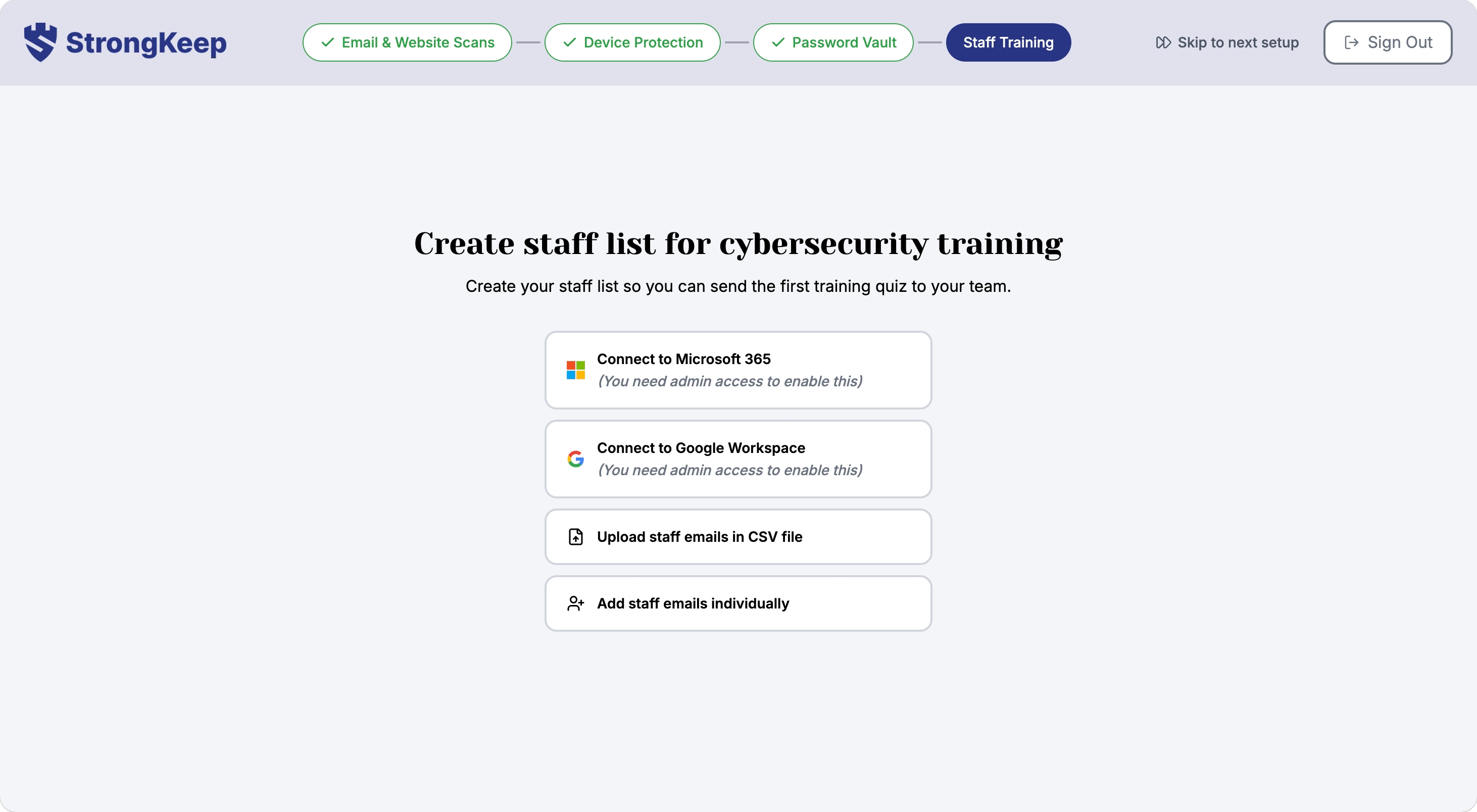
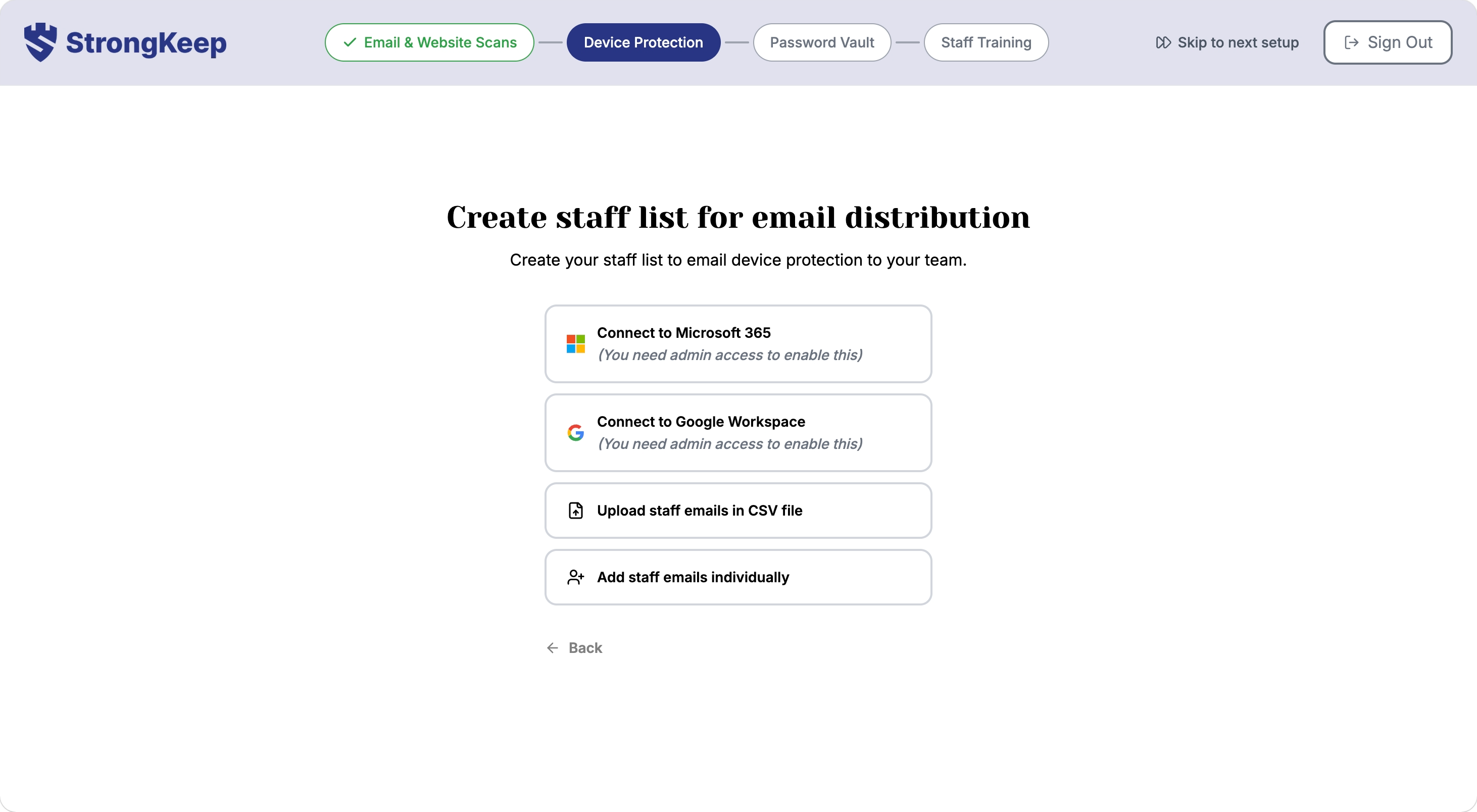
This staff list screen appears in the Device Protection, Password Vault, and Staff Training steps whenever you haven't added any staff yet — build it once and StrongKeep reuses it for the rest of onboarding.
Choose one of four ways to add staff:
- Connect to Microsoft 365 (needs admin access)
- Connect to Google Workspace (needs admin access)
- Upload staff emails in a CSV file
- Add staff emails individually
Sending the training quiz
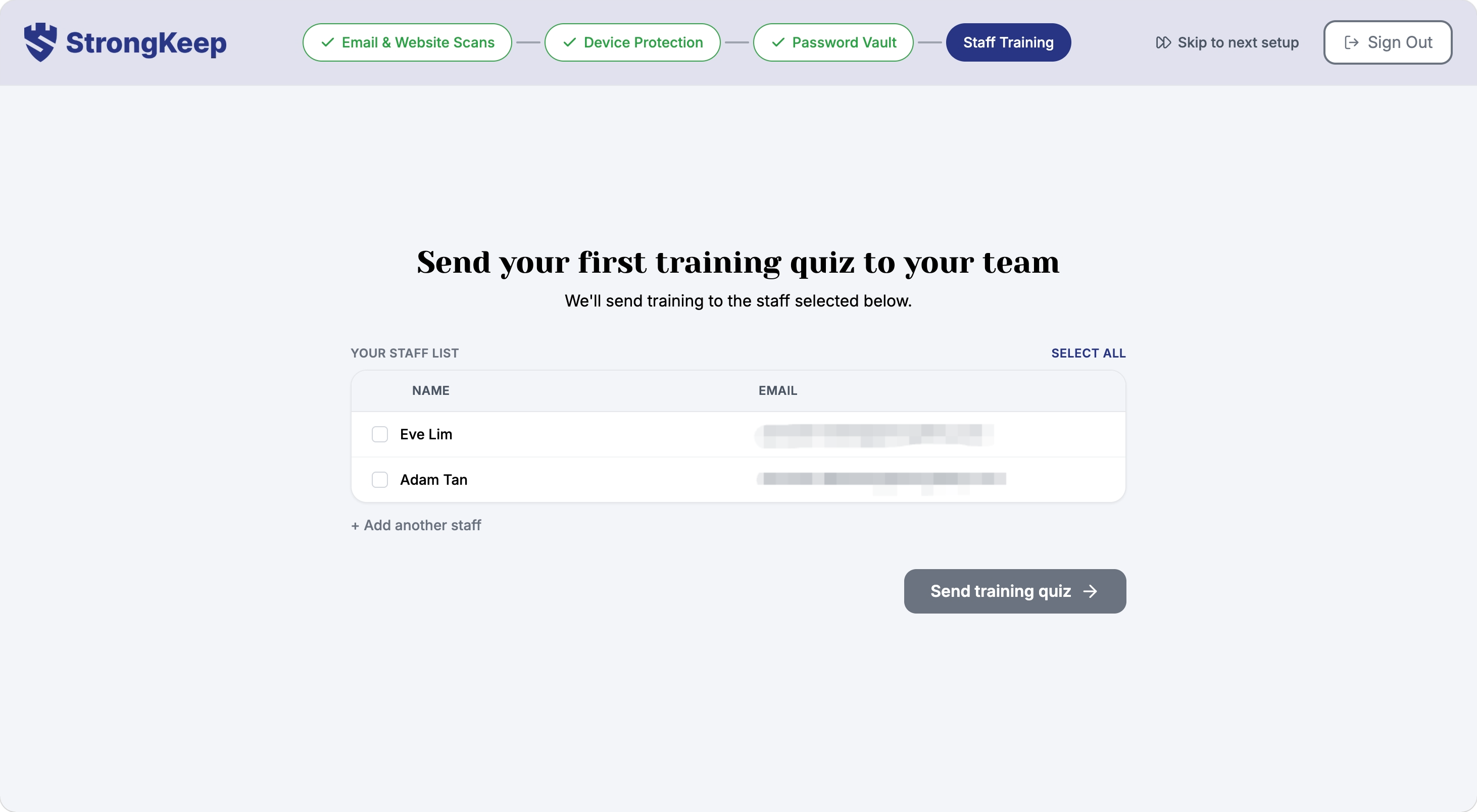
Once your staff list exists, select who should receive the quiz and click Send training quiz.
For adding, grouping, and managing staff beyond onboarding, see Adding your staff. For campaign templates, tracking completion, and reports, see Training your staff.